AI Manga Translator
Automatically detect and translate text in manga, comics, and webtoons while preserving the original art style.
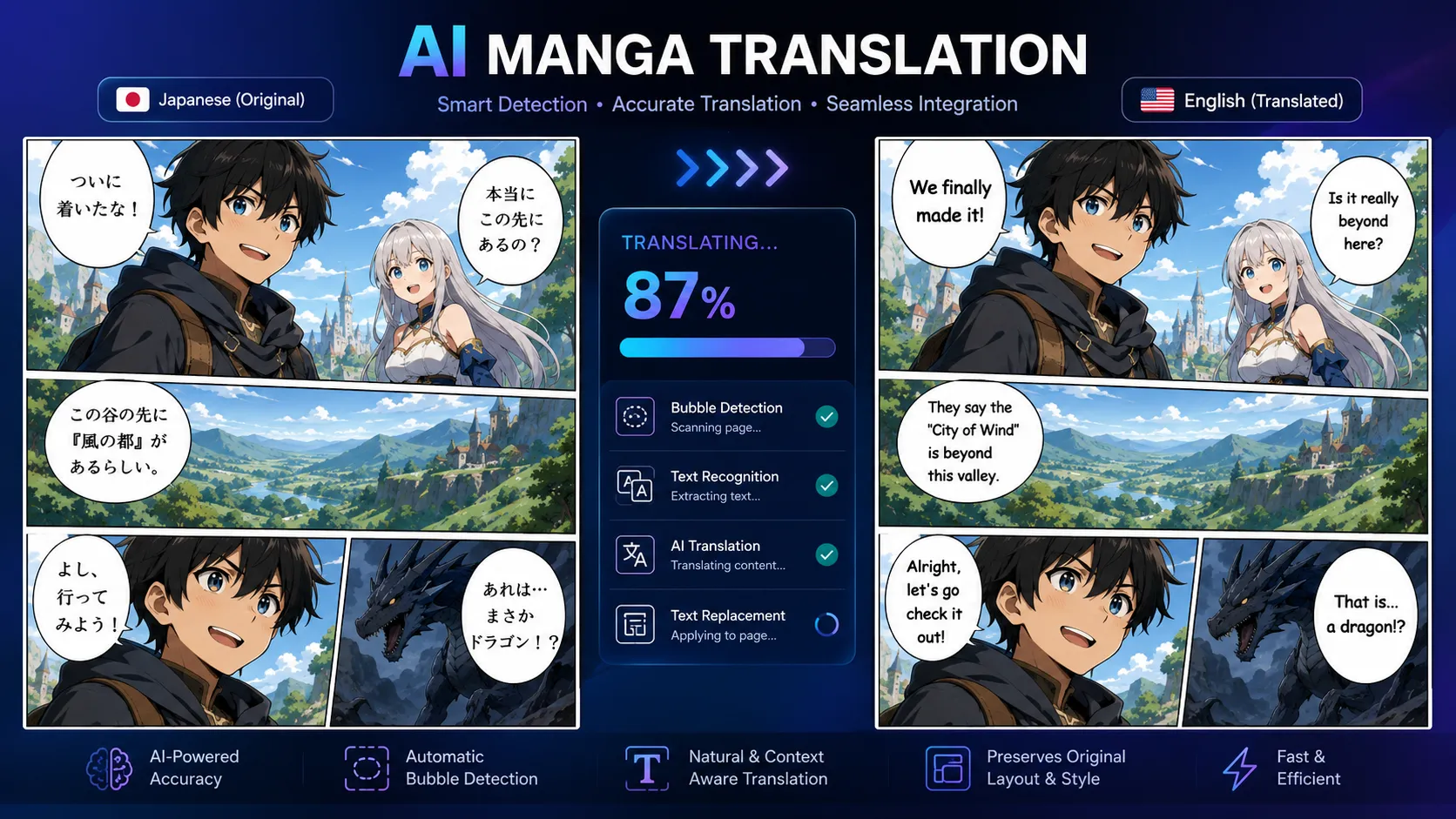

Automatically detect and translate text in manga, comics, and webtoons while preserving the original art style.
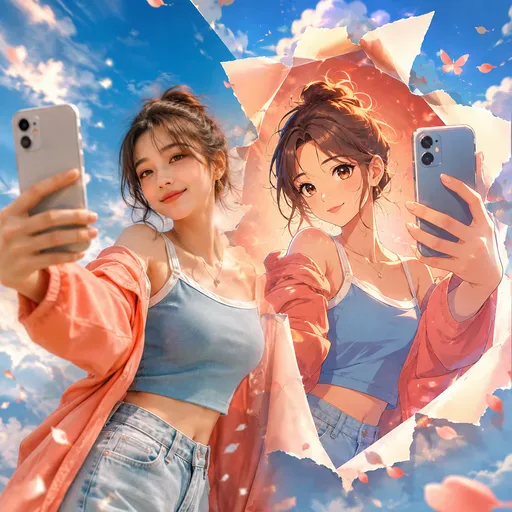
Upload a portrait, selfie, pet photo or group picture, then choose an anime style. The result aims to retain the features that make the original recognisable.

Describe a scene or short story, choose a comic style and panel layout, then generate a comic page without drawing each panel by hand.

Upload clean line art or a rough sketch, choose a colour treatment and line fidelity, then add colour while preserving the drawing’s composition.
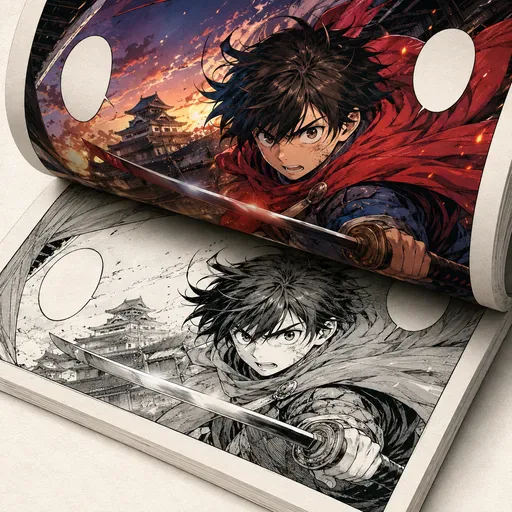
Add colour to black-and-white manga, comics and line art while aiming to preserve the original lines.
Use the prompt to ask the AI to identify speech bubbles, narration and sound effects, then translate the text. Review the result: text detection and translation can vary with the image and selected model, and you may need to adjust the prompt or edit the image yourself.
Choose a target language in your prompt or language settings. You can try the tool with Japanese manga, Korean manhwa or Chinese manhua, and ask it to work with vertical or horizontal text and the page's reading direction. Results depend on the selected model and image, so check the translation and layout.
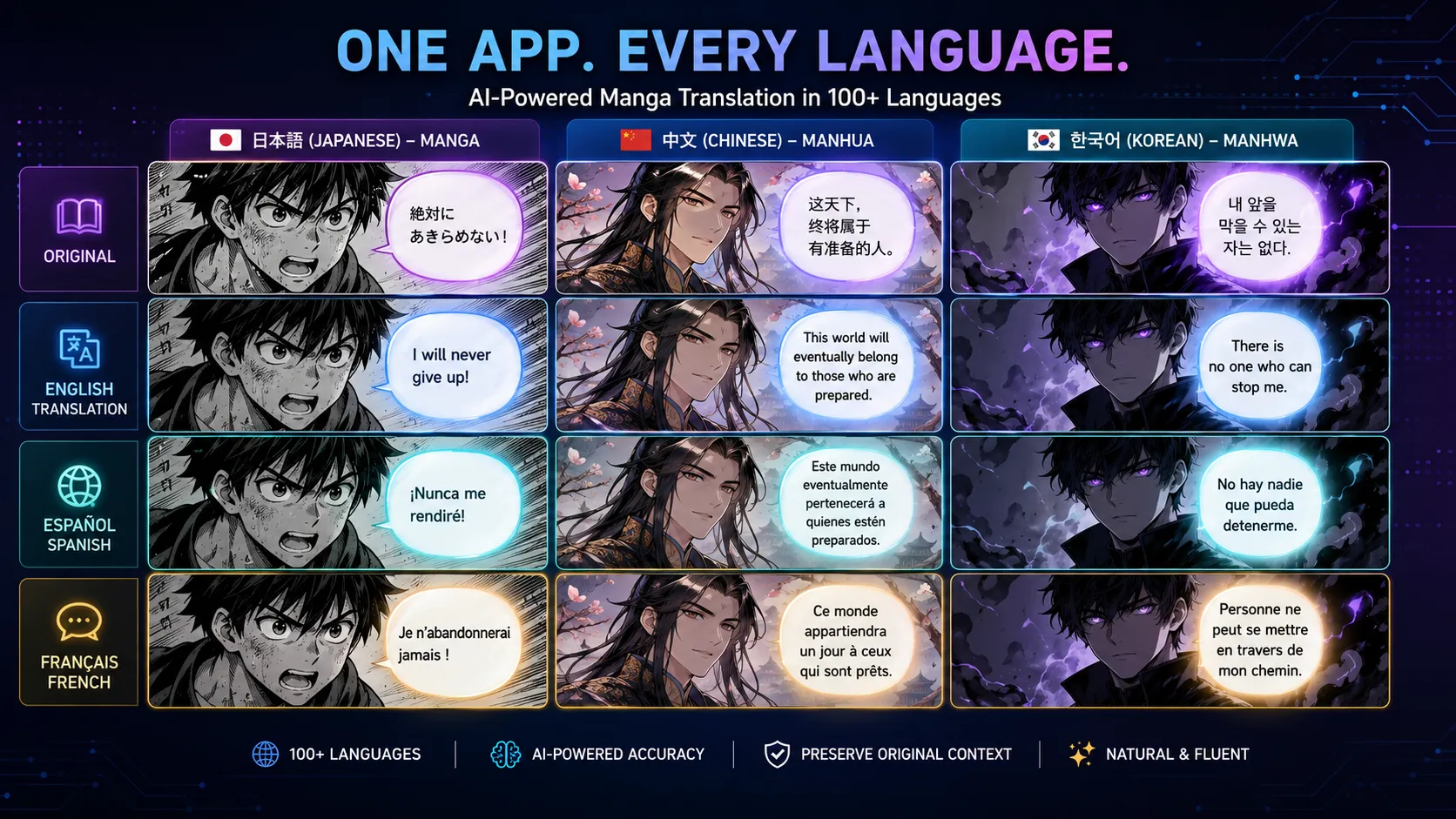
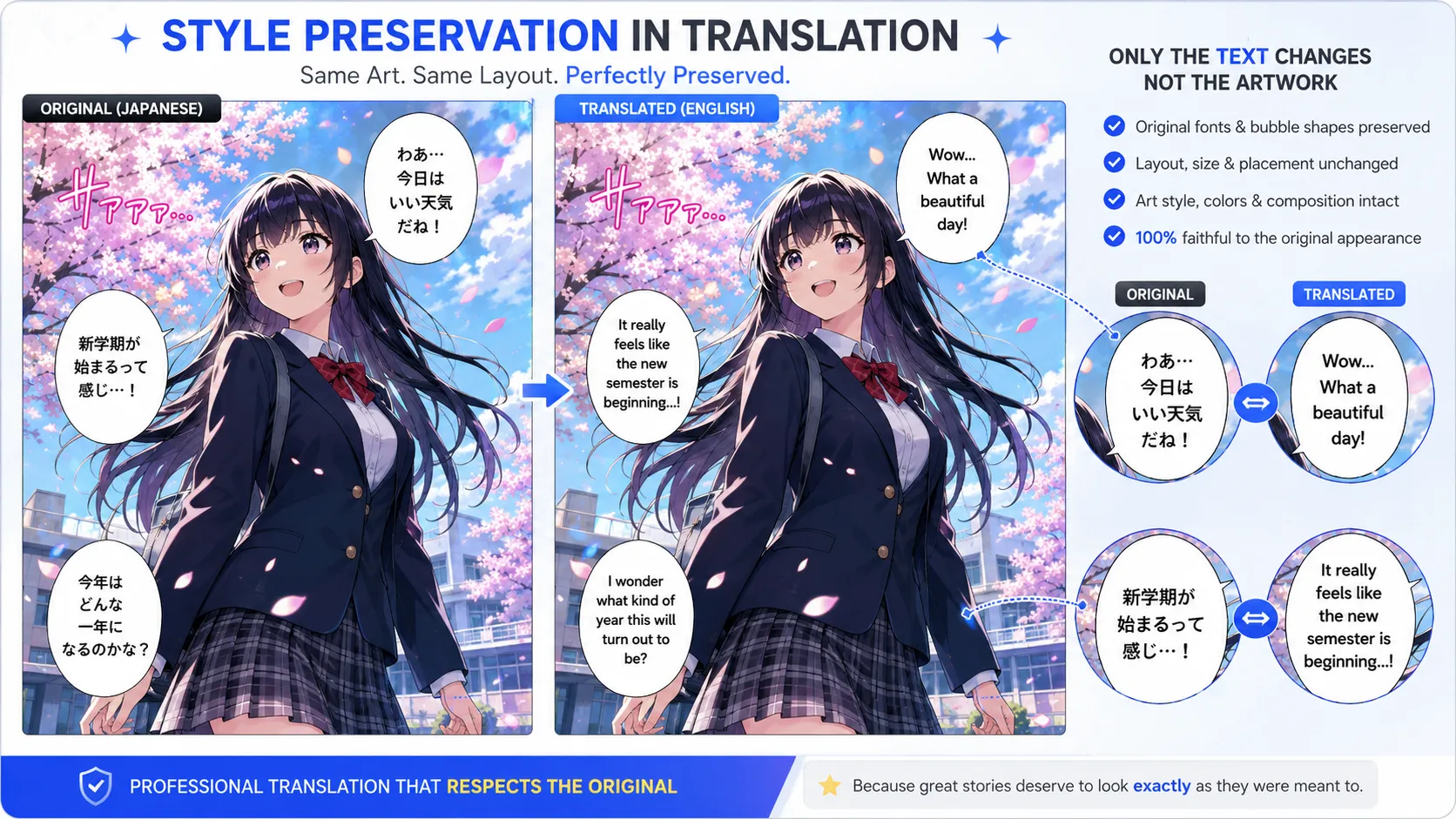
You can choose a font style and size for the translated text. The model may change details around the text, and the result may not preserve the original artwork, line art, colours or backgrounds exactly. Review the output for accuracy and readability before using it.
If dialogue is your priority, try translating first; if screentones make small text hard to read, try colourising first. Check dense or handwritten sound effects manually before sharing or publishing.
GPT Image 2 is an OpenAI image model for generating and editing images. It can render text in multiple languages and ...
Generate and edit images with Nano Banana Pro. Sign-in and account credits are required; review the displayed cost be...

Create videos from text prompts, animate an image or use video input in supported modes. Choose a generation mode and...
Create videos from text prompts or images with Sora 2. Choose from the available options, then review the displayed c...
ByteDance's AI video model combines text, images, video clips and audio in one prompt. Use its @-reference system to ...