AI Outpainting
Extend an image beyond its edges with AI-generated content.
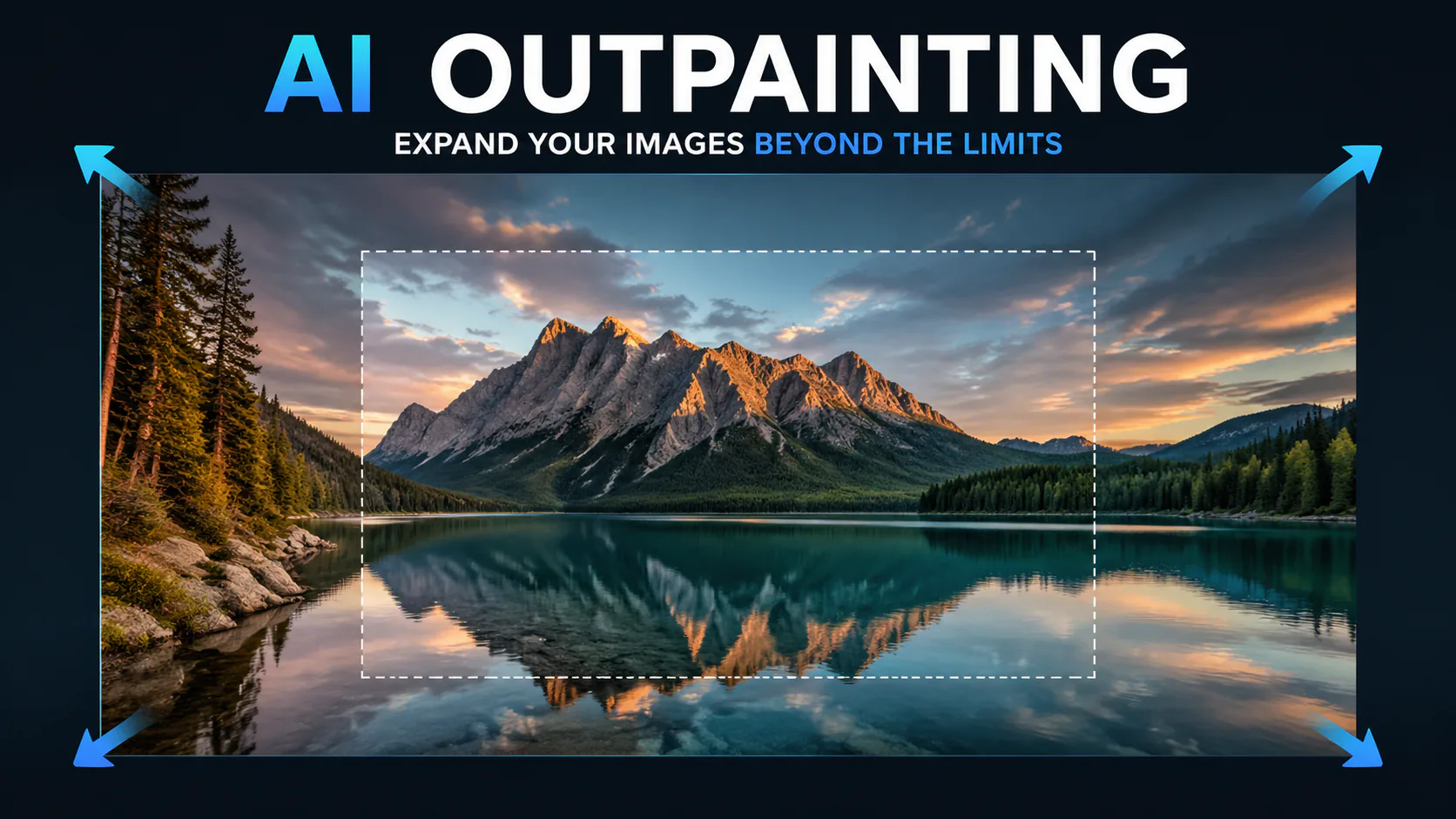

Extend an image beyond its edges with AI-generated content.

Remove unwanted objects, people, text or imperfections from a photo. The model fills the selected area based on its surroundings, so results can vary.

Use AI to work on damaged, blurry or aged photos. Generated details may differ from the original, especially where the source image has lost information.

Use AI to remove watermarks, logos or other unwanted elements from an image. Only edit images you have permission to modify.

Remove watermarks from generated images using advanced AI inpainting technology.
AI outpainting uses a source image as a reference to generate content beyond its edges. Add space around a photo, explore a different aspect ratio or describe how the background should continue. Sign in to generate, then check the selected model and displayed credit cost.
Extending an image with AI can add new content around its edges instead of simply stretching the existing pixels. Choose a supported model and describe how you want the added area to look. Results depend on the source image, prompt and model.
Upload an image, choose an available aspect ratio if the selected model offers one, and describe what you want beyond the original edges. The model uses your image and prompt to generate an extension. Sign in before generating, and check the model and credit cost shown for your request.
GPT Image 2 is an OpenAI image model for generating and editing images. It can render text in multiple languages and ...
Generate and edit images with Nano Banana Pro. Sign-in and account credits are required; review the displayed cost be...

Create videos from text prompts, animate an image or use video input in supported modes. Choose a generation mode and...
Create videos from text prompts or images with Sora 2. Choose from the available options, then review the displayed c...
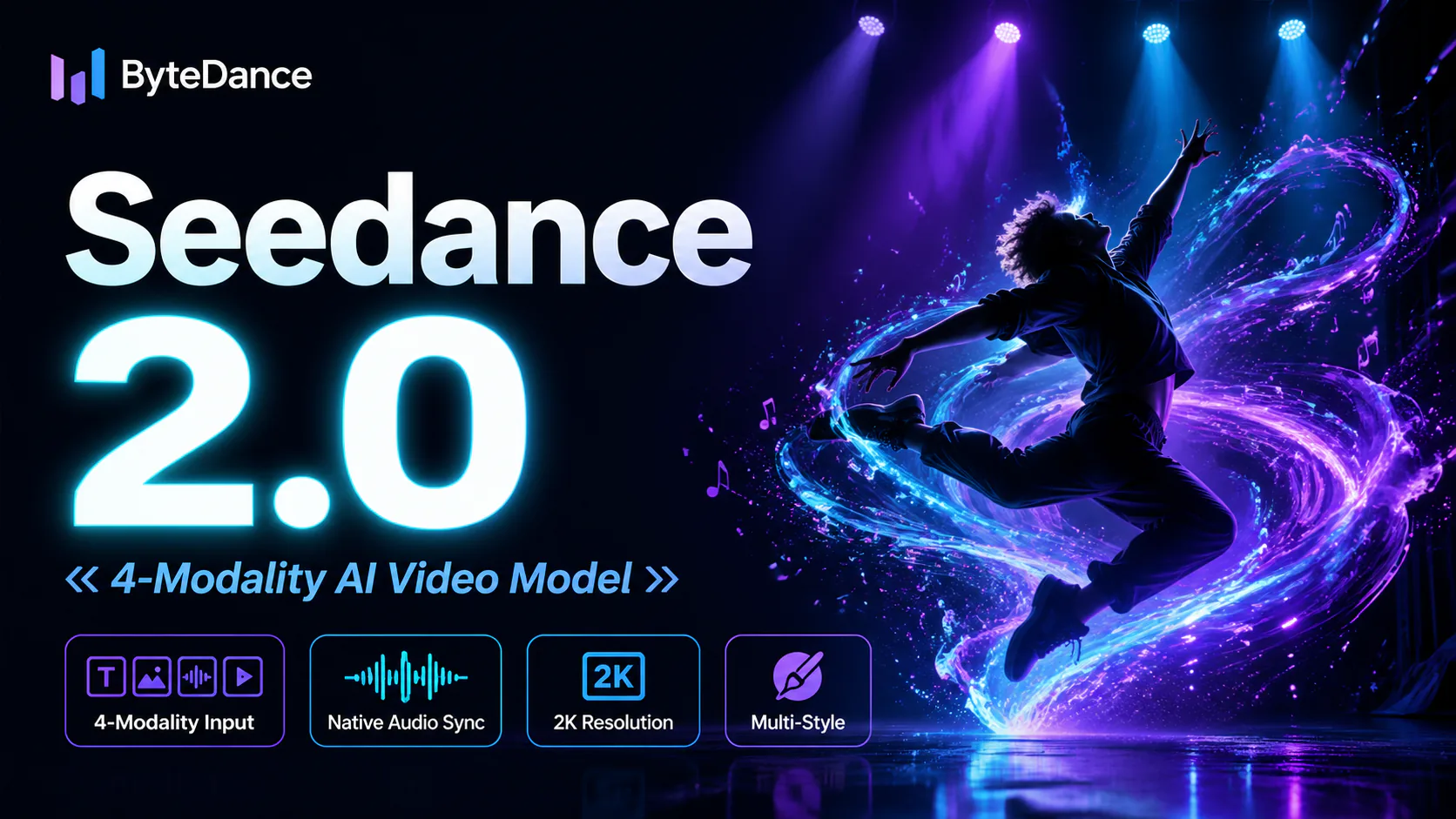
ByteDance's AI video model combines text, images, video clips and audio in one prompt. Use its @-reference system to ...