Y2K Filter
Upload a photo and explore neon, chrome, bubblegum and holographic Y2K styles. Choose a look, generate with account credits and review the result.

Upload a photo and explore neon, chrome, bubblegum and holographic Y2K styles. Choose a look, generate with account credits and review the result.

Add neon glow effects to photos with vivid colours, luminous edges and a cyberpunk feel.

Give portraits or city photos a neon sci-fi look for game profiles, posters, thumbnails or social posts. Describe futuristic lighting, holographic details and cinematic contrast while keeping the subject clear.

Create retro-inspired edits, synthwave posters, profile visuals and music-cover concepts. Describe neon grids, sunset colours, VHS textures and surreal details to guide the composition.
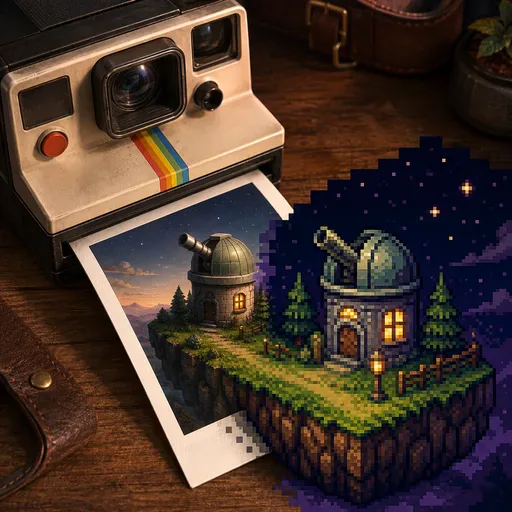
Turn a photo into pixel art with an 8-bit, 16-bit or 32-bit look.
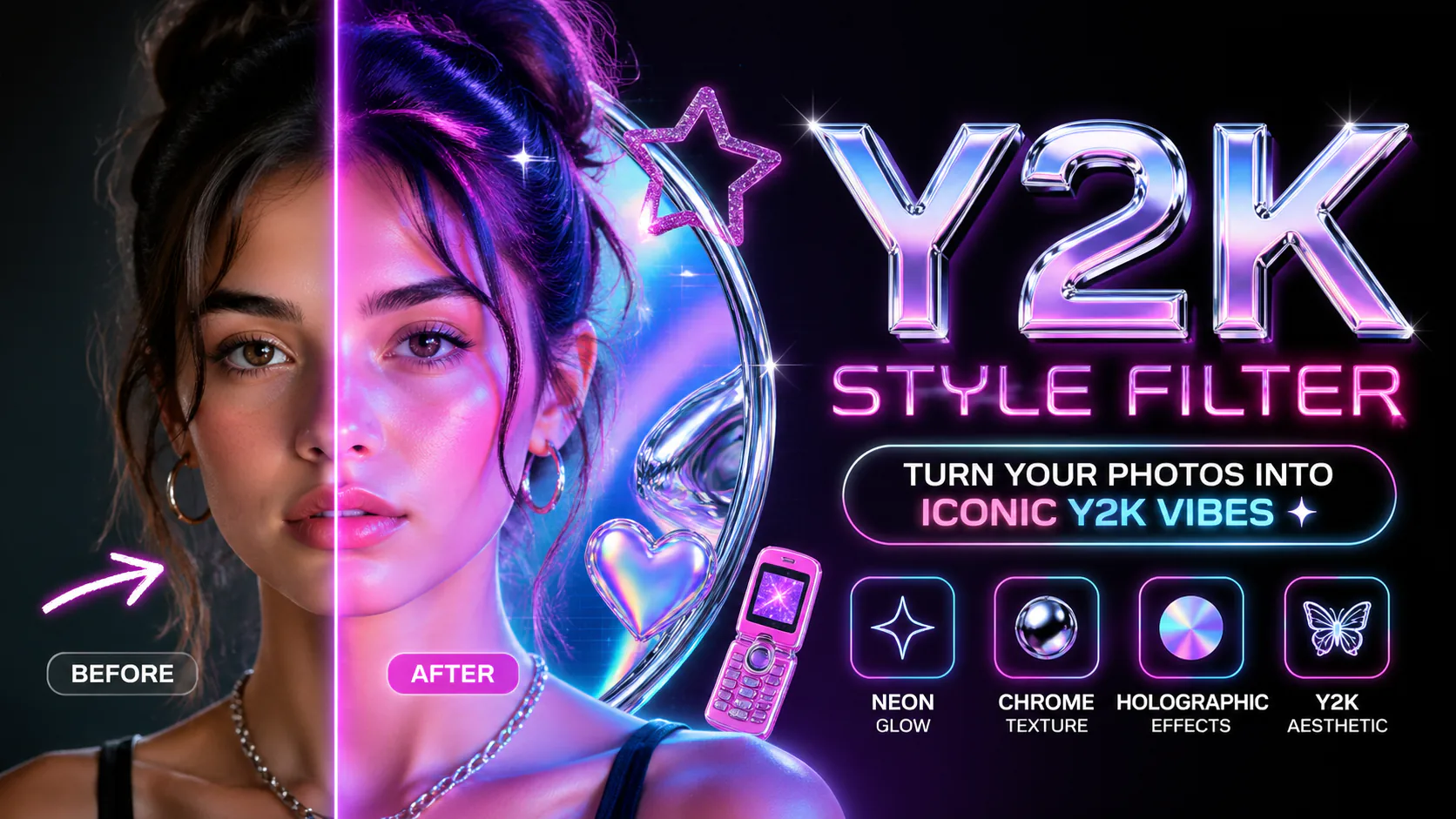
Turn a selfie, outfit shot or product photo into a millennium-inspired visual. This AI filter focuses on neon, metallic, pastel and holographic styling. The examples show strong creative restyling, including illustrated portraits; choose this for a new visual direction rather than a pixel-preserving camera adjustment.
Use a well-lit image with a visible face, outfit or product silhouette. Avoid tiny faces and clutter that hides important details. A group photo can change several people at once, so inspect each face. Use images you have permission to upload and keep an original copy for comparison.
Upload your photo and compare the five available presets before choosing one. Sign in, choose an available model and image settings, and check the displayed credit amount. Generate, open the finished result and download your preferred version. Processing time depends on the model and current task conditions. To emphasize a detail, switch to Custom and edit the effect description before generating.
Neon Glow brings out pink and blue light; Chrome Metal adds reflective silver; Bubblegum Pop uses glossy pastel colours; Cyber Matrix takes a darker digital approach; and Holographic explores iridescent colour. Strong effects can redraw clothing or backgrounds and may give the image an illustrated look rather than a realistic digicam photo.
Compare facial features, hands, important product details and any lettering with the original. AI restyling can change identity cues and fine details; preservation is not guaranteed. If the effect overwhelms the subject, try a different preset or clearer photo, then inspect the downloaded image at full size.
Use a finished image for an avatar, Instagram or TikTok post, album cover, poster, music-video thumbnail, campaign mood board or design study. Match the crop to the destination and check rights to your source material. This page does not provide sticker placement, timestamp controls or a dedicated digicam preset.
Choose Neon Glow, Chrome Metal, Bubblegum Pop, Cyber Matrix or Holographic. Each explores a different millennium-inspired palette and finish. The current examples focus on creative neon restyling rather than a simple camera colour filter.
Use a clear portrait, outfit shot or product photo with good lighting. For groups, make each face large enough to review; strong effects can change people and small details differently.
The reference guides the result, but AI restyling can change facial features, clothes and the background. Compare the full-size result with your original before sharing it.
Upload a photo, choose a preset and model, sign in and check the credit cost, then generate. Time varies by model and task conditions; use history if you do not want to keep the page open.
Check the selected model’s terms and the rights to the original photo, people and any brands shown. This tool does not clear those rights or provide a blanket commercial-use guarantee.
Choose a model and image settings to see the credit amount beside the generation button. The amount can vary with the selected model and resolution; check it before submitting.
Choose from the aspect ratios and sizes available for your selected model. Match the image shape to where you want to display or share the result.
Use the result panel to inspect and download the image. You can also check generation history if you leave the page while the task runs. Review the full image before sharing it or handing it to a designer.