AI Oil Painting
Give a photo an oil painting look, with painterly brush strokes and rich colours.
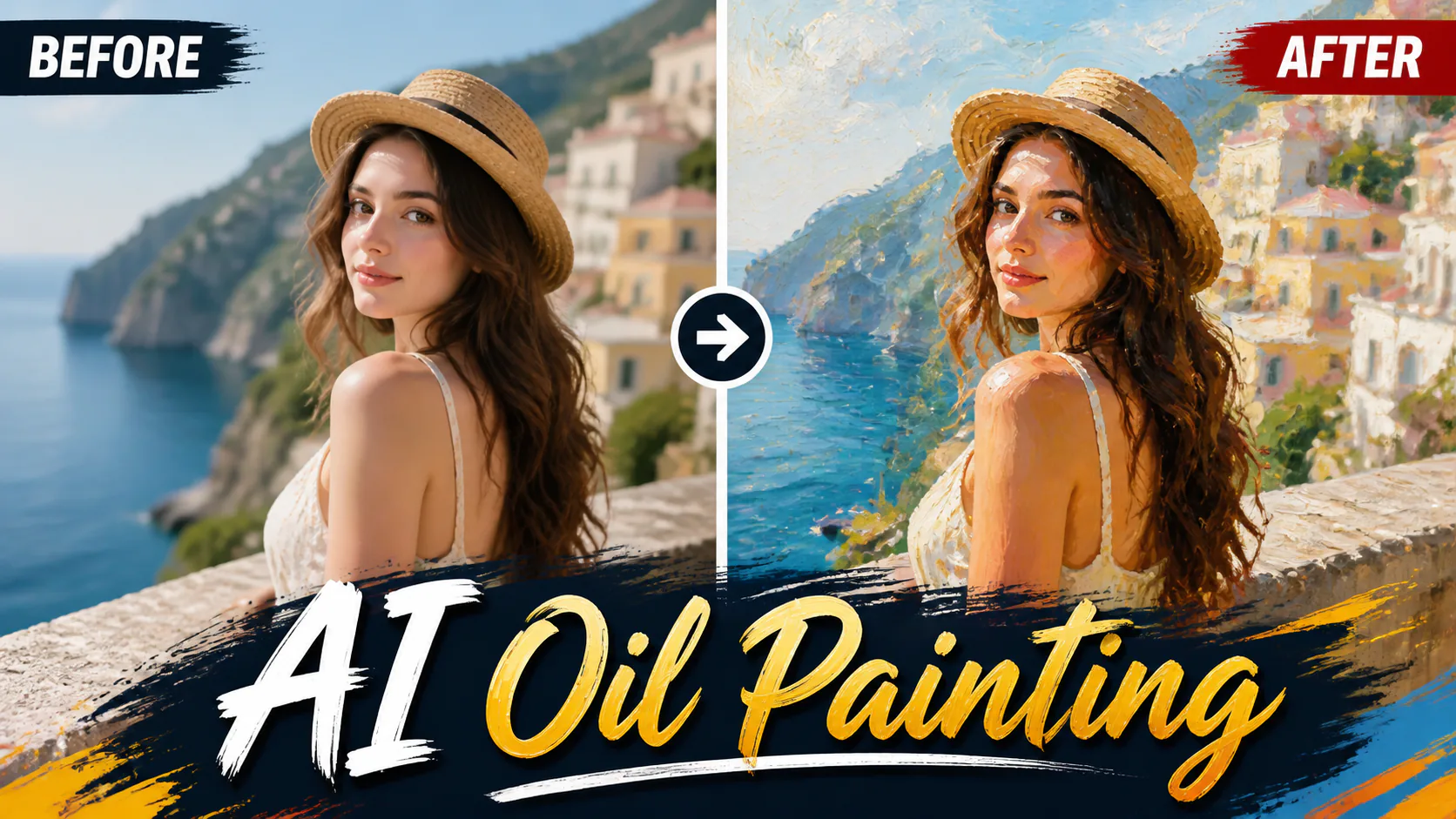

Give a photo an oil painting look, with painterly brush strokes and rich colours.

Turn ordinary photos into soft watercolour portraits, card designs, wall art concepts or social visuals. Ask for paper texture and flowing pigment edges for a hand-painted look.
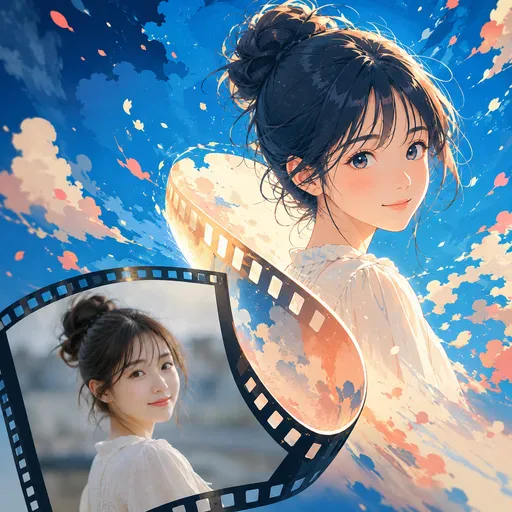
Turn a portrait into an anime-style avatar, manga-inspired profile picture or character image for social accounts. Keep the person recognisable while changing details such as the hair, eyes, colours and illustration mood.

Add neon glow effects to photos with vivid colours, luminous edges and a cyberpunk feel.

Give portraits or city photos a neon sci-fi look for game profiles, posters, thumbnails or social posts. Describe futuristic lighting, holographic details and cinematic contrast while keeping the subject clear.
Use the oil painting tool to explore a painterly treatment of your photo. Depending on the selected model and prompt, the result may include visible brush marks, thick impasto-like texture and rich colours.
Explore oil painting styles and textures with AI image generation.
1. Sign in and upload a photo. 2. Choose an oil painting style and model. 3. Check the model's output options and credit cost, then generate. 4. Review and download your image if you like the result.
A well-lit photo with a clear subject can make it easier to guide the result. Try describing the brushwork, colour palette and painting style you want; the outcome depends on the photo, model and prompt.
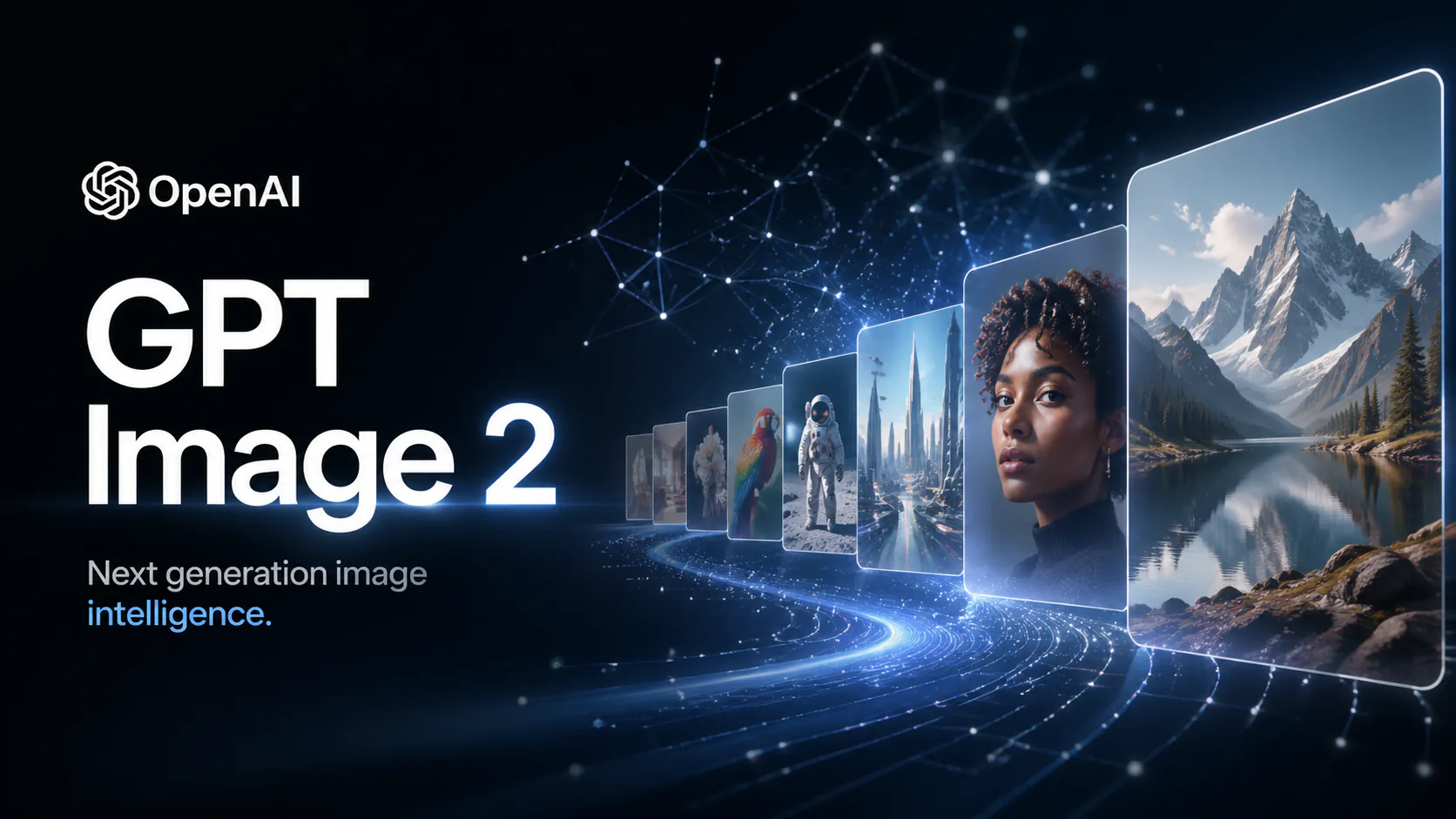
GPT Image 2 is an OpenAI image model for generating and editing images. It can render text in multiple languages and ...
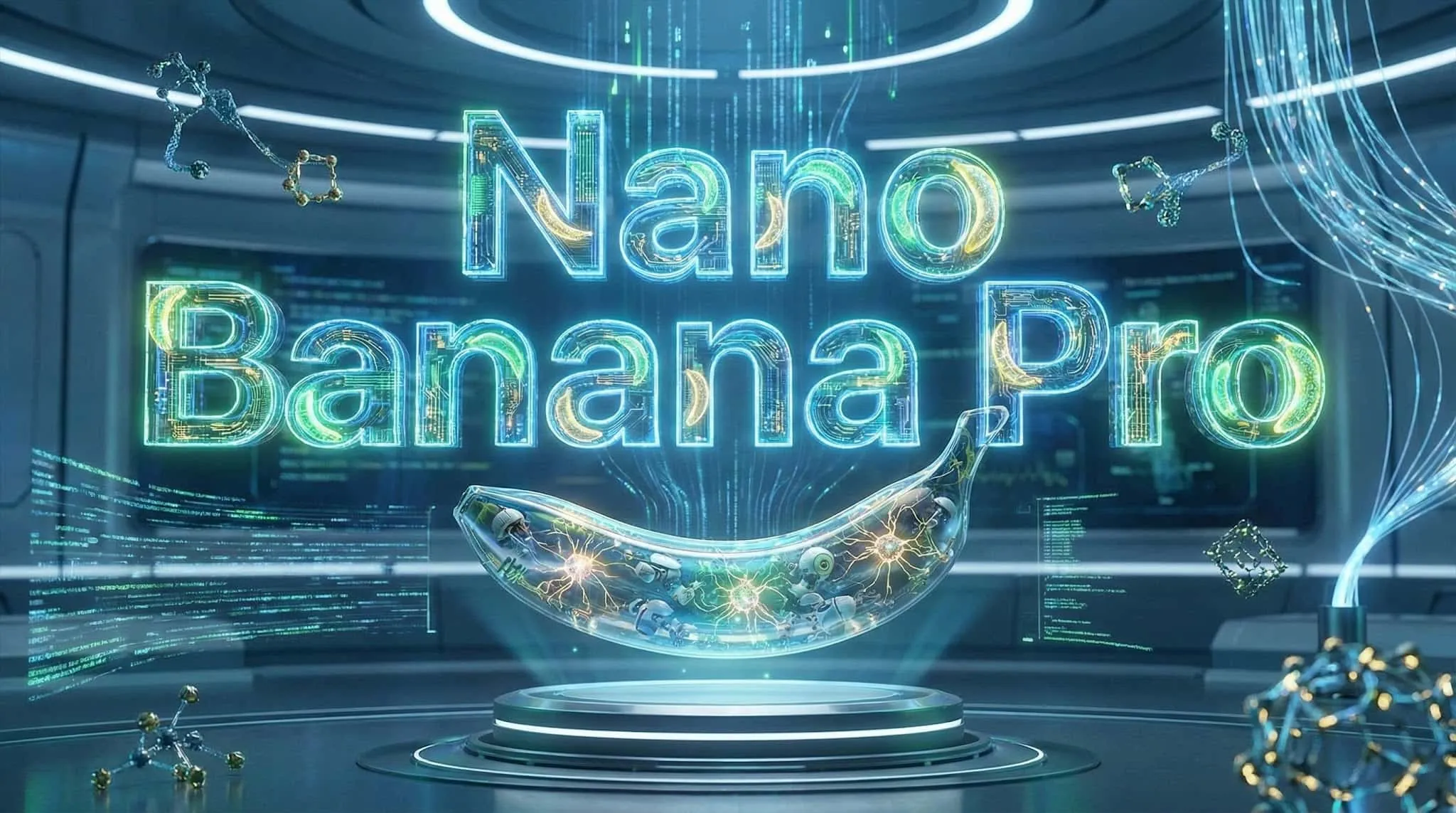
Generate and edit images with Nano Banana Pro. Sign-in and account credits are required; review the displayed cost be...

Create videos from text prompts, animate an image or use video input in supported modes. Choose a generation mode and...
Create videos from text prompts or images with Sora 2. Choose from the available options, then review the displayed c...
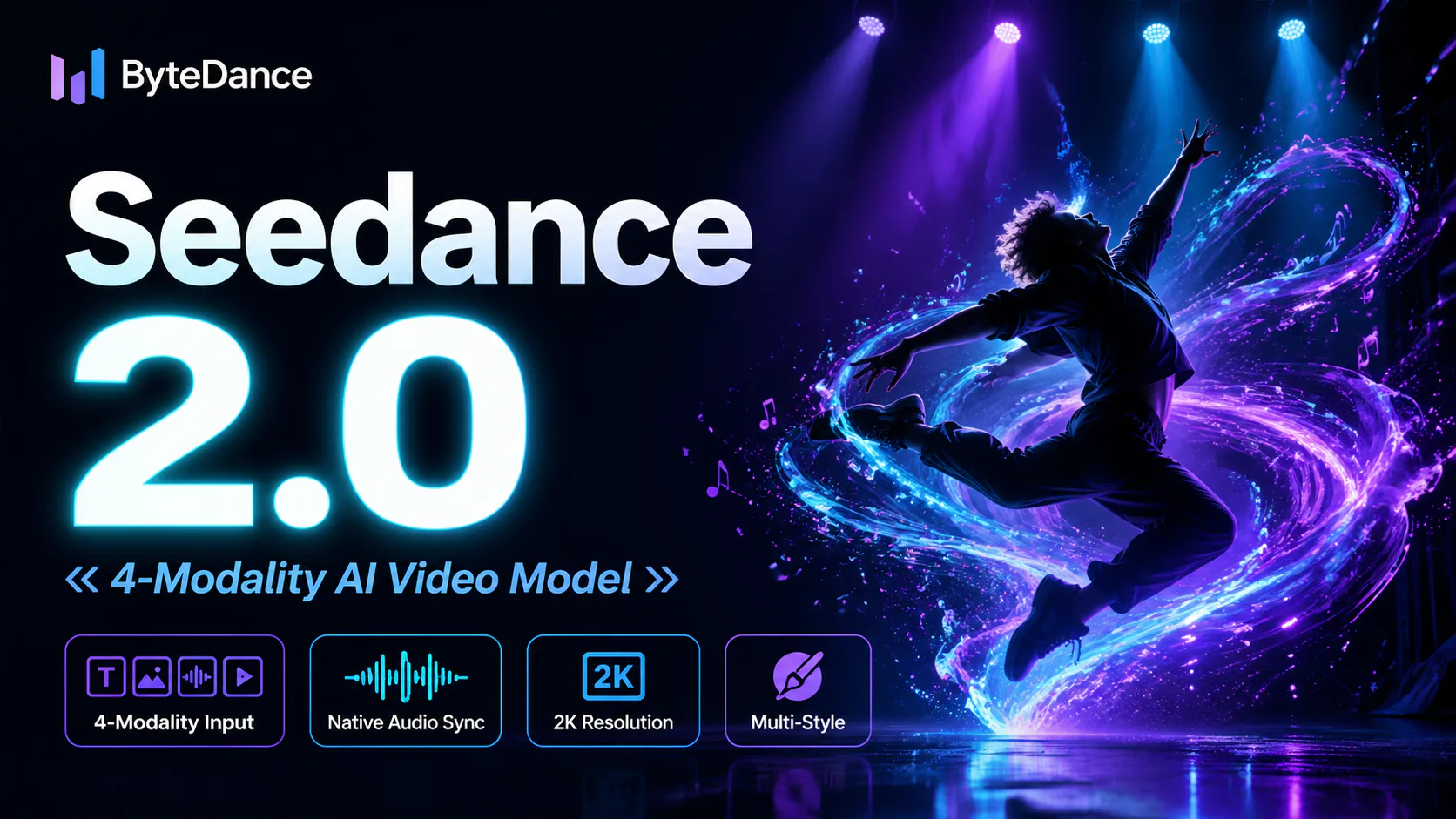
ByteDance's AI video model combines text, images, video clips and audio in one prompt. Use its @-reference system to ...