Nano Banana Pro
  • Home
  • Assets
  • Pricing
AI Tools
AI Tools
Image
AI Comic GeneratorRemove BackgroundObject EraserImage Upscaler
Video
Video UpscaleAI Video EditorAI Video Extend
Nano Banana ProNano Banana Pro

Choose a video

MP4 / MOV · 2–30 s · ≤ 200 MB

Reference mediaOptional
Reference media
0/300/90/10

Image

JPG, JPEG, PNG, WEBP · 30MB · 0/30

Video

MP4, MOV · 200MB · 0/9

The source and reference videos can total up to 30 seconds. Changing reference media refreshes the credit estimate.

Processing options

Seedance 2.5 Video Extend
Extension direction
20s
5s30s
Output resolution

AI Video Extender

Generate new footage at the beginning or end of a clip. Choose how much time to add and preview the join with the original.
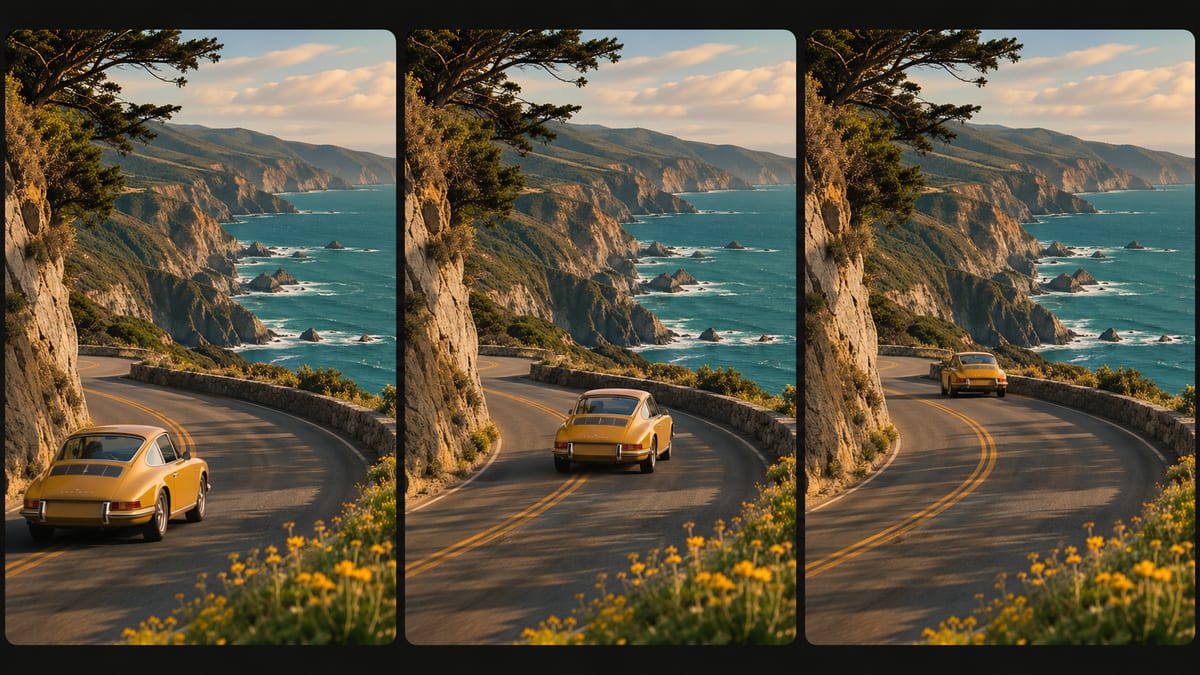
AI Video Extend
AI Video Extend

How to use it

Upload the original clip, choose a generated video from your library, or paste a direct video link.

1. Choose a video

Choose a clip with a clear first or last frame. Trim away a cut or abrupt movement at the edge you want to extend.

2. Processing options

Choose Before or After, added seconds and resolution. Describe the next movement relative to the source, and enable audio only if you want generated sound.

3. Your result

Place the result beside the source in your timeline. Play across the join at normal speed and check direction, lighting and sound before using the clip.

AI Video Extend

Core features

Extension direction

Add an opening before the first frame or continue the motion after the last one.

New video duration

Choose how much footage to add and the output resolution. Enable generated audio when the new footage needs sound.

AI Video Extend

Where to use it

Give an ending room to breathe

If a camera move ends before the product is centered, extend the ending with the same direction and speed. Use the added footage to give an end card time on screen.

Add a lead-in to an action

For a clip that starts with a door already moving, ask for the moments just before it opens. Match the hand position at the first original frame.

FAQ

Frequently asked questions

Use MP4 or MOV. Local uploads allow up to 200 MB. Direct HTTPS links allow up to 24 MB. Source duration: 2–30 s.

Source duration is the length of the clip you upload. Added duration is how much new footage you ask for. Choose 480p, 720p or 1080p for the result.

Use 24–60 FPS. If rejected, export a copy at a supported rate before importing again.

Use a shorter extension and describe the next action in terms of what is already moving. Check the join in your timeline and trim any frames that jump.

Turn it off if you plan to supply the soundtrack in your editor. If you leave it on, listen for changes in ambience at the join.

This tool uses the source video and your description. Describe the visual detail you want to keep, and add your own audio in editing.

Select a source and wait for its metadata to load. Check the estimate again after changing settings, before you submit.

Use a public, direct HTTPS link to an MP4 or MOV file. If it opens a viewing page, asks for login or has expired, upload the file instead.

AI Video Extend

Open the tool
Nano Banana Pro
Nano Banana ProNano Banana Pro

Nano Banana Pro gives you access to advanced AI image models for creating professional-quality images.

Email
FAQShowcasesChangelogAPIManga ColorizerCyberpunk
العربيةDeutschEnglishEspañolFrançais繁體中文日本語한국어Bahasa MelayuTürkçeไทยTiếng ViệtPortuguês (Brasil)中文עבריתPolski
© 2026 Nano Banana Pro· All rights reserved
Privacy PolicyTerms of ServiceRefund PolicyRefund RequestAbout Us
HomeNEWToolsAssetsProfile