Nano Banana Pro
  • Home
  • Reviews
  • Assets
  • Pricing
Models
Nano Banana 2.1Nano Banana 2Nano Banana 2 LiteNano Banana ProSeedream 5.0 LiteSeedream 5.0 ProSeedream 5.0 FlashGPT Image 2.5 FlareGPT Image 2.5 SunburstGPT Image 2Grok Imagine Image 2.0FLUX.3 KleinVeo 3.1 QualityGemini OmniGemini Omni 1.1 FlashMiniMax H3MiniMax H3 MaxMiniMax H3 Max TurboSeedance 2Seedance 2.5Seedance 2 FastSeedance 2 MiniHappyHorseWan 2.6Wan 3.0 VideoWan 3.0 Video PrimeKling 2.6Kling 3.0Kling 3.0 OmniKling 3.0 Motion ControlPixVerse V6Grok Imagine Video 1.5 PreviewVidu Q4Grok Imagine Video 1.5 Lite
Nano Banana ProNano Banana Pro
Model
0 / 2000
Aspect ratio
Resolution
Duration

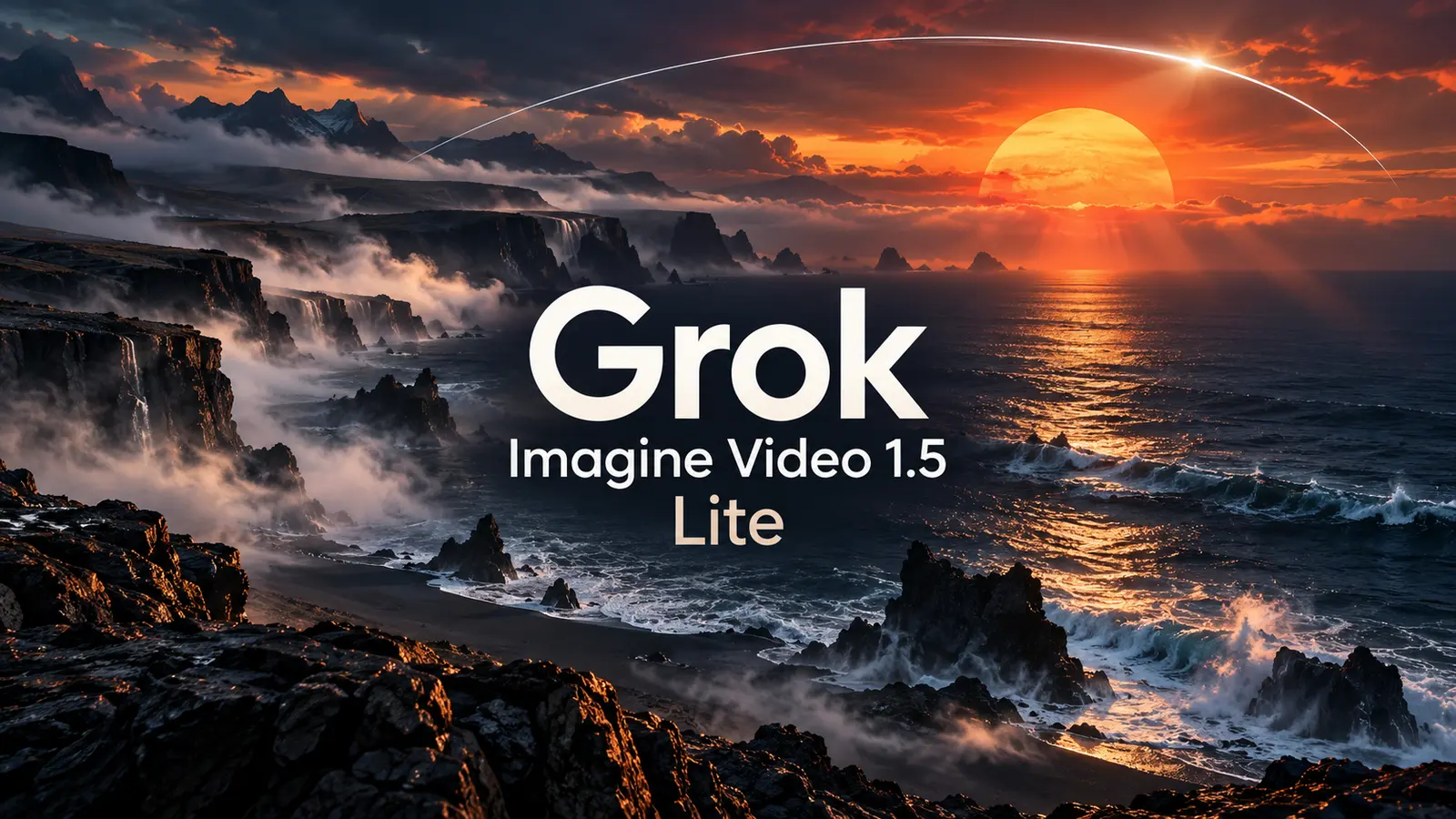
Grok Imagine Video 1.5 Lite

Turn a written scene or one starting image into a short video with native audio. Choose 4–15 seconds, review the credit estimate and develop your next shot.

Grok Imagine Video 1.5 Lite
About

Create short videos with Grok Imagine Video 1.5 Lite

Grok Imagine Video 1.5 Lite creates short videos from a written scene or one starting image, with native audio generation. Explore product motion, social clips and storyboard ideas using 4–15 seconds and a choice of 480p, 720p or upscaled 1080p.

Create short videos with Grok Imagine Video 1.5 Lite

Plan, generate and refine your shot

Prepare a focused brief, choose the output settings and review motion, sound and detail.

Turn a written scene into motion

Start with one subject and one clear action.

Describe the subject, setting, movement and camera direction in a short, coherent shot. A ceramic vase under side lighting with a slow camera orbit is easier to assess than several scene changes at once. Text-to-video needs no uploaded image; use the result to compare your composition and motion idea before developing a longer edit.
Animate one starting image

Prepare a clear frame with room for movement.

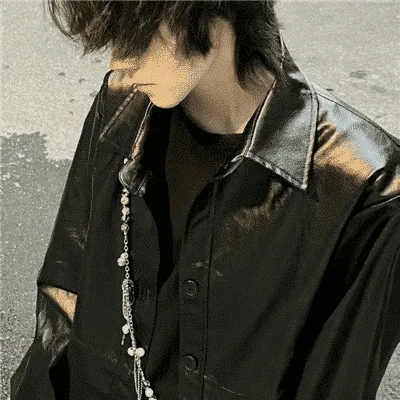
Upload one JPG, PNG or WEBP image of up to 10 MB and describe how the scene should move. Use a sharp subject, useful background space and a composition close to your intended video. The image determines the output aspect ratio. Faces, product labels and fine edges can change during animation, so compare the result with your original.

Choose the shot length and framing

Create clips from 4 to 15 seconds.

Choose a whole-second duration from 4 to 15 seconds. Keep a four-second brief focused on one action; use longer clips when a movement needs time to develop. Text-to-video offers auto, 16:9, 9:16, 1:1, 4:3, 3:4, 3:2 and 2:3. Choose vertical framing for a mobile story or a wide frame for a presentation. With a starting image, prepare the crop before uploading.

Compare 480p, 720p and 1080p

Match the output setting to your next step.

Start at 480p to explore a shot, then consider 720p or 1080p for a larger placement. The model produces 1080p by upscaling 720p; selecting it does not make the source rendering native 1080p. Higher resolution also costs more and cannot repair inconsistent motion, incorrect lettering or a changed face. Inspect the downloaded video at its intended display size.

Describe sound alongside the scene

Give the clip a clear audio direction.

The model can generate video with native audio. Mention relevant ambience or a simple sound cue, such as waves against a quiet coast or a cup placed on a wooden table. This workspace has no separate audio upload or sound toggle. Review speech, timing, background noise and music before sharing; requested dialogue and synchronization are not guaranteed.

Check the estimate before generating

Text-to-video starts at 10 credits for 4 seconds at 480p.

Sign in and check your balance and the displayed estimate. A text-only 480p clip costs 10 credits for 4 seconds or 20 for 8 seconds. At 4 seconds, text-only 720p costs 15 credits and 1080p costs 70. A starting image adds a small charge before rounding: a 4-second 480p image-to-video clip costs 12 credits. Duration and resolution change the estimate; confirm it before submitting.

Develop a usable creative draft

Explore products, storyboards and social clips.

Try a product movement study, an establishing shot for a storyboard or a vertical social-video concept. Keep the same brief while changing one major setting so the results are easier to compare. Add exact titles, logos and final typography in your editor after selecting the video. Check permissions for people, products and artwork in your references before publishing.

Review the clip and download it

Watch the full result before using it elsewhere.

When generation finishes, inspect the entire clip for changing identities, warped objects, abrupt motion and unwanted text. Listen to its audio and compare the opening frame with your reference. Use the result download control, then open the saved file for your editing or publishing workflow. Generation time varies; commercial use depends on your input rights and the applicable model and service terms.

Video briefs to explore

Ceramic product

A slow orbit around a ceramic vase, with soft side lighting and a still background. Check the silhouette and any markings throughout the movement.

Shop window

A gentle camera push toward a shop window at dusk. Add the final shop name in your editor after checking reflections and glass edges.

Coastal opening shot

A wide coast with small waves and a slow camera pan. Describe a quiet ocean ambience, then review the horizon and sound.

Portrait movement

A subtle head turn from a portrait you have permission to use. Compare facial features with the starting image and avoid dramatic changes.

Storyboard frame

A slow pan across a room to test an opening shot. Check spatial consistency before treating the clip as a reference for a longer sequence.

Food close-up

Steam rising from a warm bowl on a table. Keep camera motion restrained and inspect the food shape and utensil edges.

Craft detail

A close view of a finished handmade object under shifting light. Check small patterns rather than assuming the generated texture is exact.

Vertical social concept

A 9:16 product scene with empty space for a short caption. Add the final caption later and check that the subject stays in frame.

FAQ

Grok Imagine Video 1.5 Lite questions

Grok Imagine Video 1.5 Lite FAQ

Explore related video models

Explore another video workflow with Grok Imagine Video 1.5 Preview or Grok Imagine.

Create a short video from text, or animate one starting image with a written motion instruction. This page selects the Lite model. It is separate from Grok Imagine Video 1.5 Preview, whose settings and capabilities should not be assumed to match.

Upload one JPG, PNG or WEBP image of up to 10 MB, then describe the movement and camera direction. A written prompt is required for both modes. Multiple reference images, an end frame and video input are not supported here.

Choose 4–15 seconds in whole seconds and 480p, 720p or 1080p. The default is 4 seconds at 480p. The 1080p option upscales a 720p source; it is not native 1080p rendering.

Text-to-video supports auto, 16:9, 9:16, 1:1, 4:3, 3:4, 3:2 and 2:3. For image-to-video, the starting image determines the aspect ratio. Crop the image to the intended shape before uploading it.

A text-only 4-second 480p video costs 10 credits; 8 seconds costs 20. At 4 seconds, 720p costs 15 and 1080p costs 70 credits. Adding one starting image makes the 4-second 480p estimate 12 credits. Charges scale with duration and resolution and are rounded up once after the image charge. Check the live estimate before generating.

The model supports native audio generation. You can describe ambience or a sound cue in the prompt, but this workspace has no separate audio input or sound toggle. Listen to the result and check any speech or synchronization before using it.

A clear starting image and restrained motion can help communicate your intent, but identities, shapes and lettering may change. Review the entire clip against your source. Add exact branding and captions in an editor when accuracy matters.

Use the download control after generation finishes, then open the saved video and check image and audio quality. You can continue editing it in your usual video workflow. Publishing or commercial use depends on your rights to the inputs and applicable service and model terms; no fixed generation time or blanket permission is promised.

Maya Chen
Maya Chen“For a ceramic product shot, I would start with a slow orbit and check the silhouette throughout the clip. A short draft helps me decide whether the camera movement suits the idea.”
Daniel Reed
Daniel Reed“A gentle push toward a shop window is a useful starting brief for me. I would inspect the reflections and add the final shop name later in my editor.”
Sofia Martin
Sofia Martin“For a coastal opening shot, I describe small waves and a quiet ocean ambience together. I listen to the generated sound as well as checking the horizon.”
Alex Morgan
Alex Morgan“When animating a portrait, I keep the movement subtle and compare the face with my starting image. I would use only a photo I have permission to work with.”
Emma Wilson
Emma Wilson“I use a room pan to explore a storyboard opening. Before continuing with an edit, I check that doors, furniture and perspective remain coherent.”
Luca Rossi
Luca Rossi“For a food close-up, I keep the camera steady and focus the brief on rising steam. I review the food shape and utensil edges across the whole clip.”

User reviews

Read All Stories
Maya Chen
Maya Chen“For a ceramic product shot, I would start with a slow orbit and check the silhouette throughout the clip. A short draft helps me decide whether the camera movement suits the idea.”
Daniel Reed
Daniel Reed“A gentle push toward a shop window is a useful starting brief for me. I would inspect the reflections and add the final shop name later in my editor.”
Sofia Martin
Sofia Martin“For a coastal opening shot, I describe small waves and a quiet ocean ambience together. I listen to the generated sound as well as checking the horizon.”
Alex Morgan
Alex Morgan“When animating a portrait, I keep the movement subtle and compare the face with my starting image. I would use only a photo I have permission to work with.”
Emma Wilson
Emma Wilson“I use a room pan to explore a storyboard opening. Before continuing with an edit, I check that doors, furniture and perspective remain coherent.”
Luca Rossi
Luca Rossi“For a food close-up, I keep the camera steady and focus the brief on rising steam. I review the food shape and utensil edges across the whole clip.”
Noah Kim
Noah Kim“A handmade object under changing light gives me a simple detail study. I would inspect small patterns rather than assuming the texture stays exact.”
Sara Ali
Sara Ali“I plan a vertical product clip with space for a caption. I check that the product stays in frame, then add the final typography during editing.”
Noah Kim
Noah Kim“A handmade object under changing light gives me a simple detail study. I would inspect small patterns rather than assuming the texture stays exact.”
Sara Ali
Sara Ali“I plan a vertical product clip with space for a caption. I check that the product stays in frame, then add the final typography during editing.”

Explore more AI video models

Veo 3.1 Quality

Veo 3.1 Quality

New

Veo 3.1 offers Lite, Fast and Quality variants where available. Choose text-to-video, image-to-video or video-to-video in supported modes; reference-to-video supports up to 3 images and requires Fast at 16:9. Available aspect options are Auto, 16:9 and 9:16. The interface has no duration or resolution selector. Check the displayed credit cost before generating.

Try now
Wan 2.6

Wan 2.6

New

Wan 2.6 supports text-to-video, image-to-video and video-to-video. It offers 5-, 10- and 15-second duration options, 720p and 1080p resolutions, and multi-shot generation.

Try now
Sora 2

Sora 2

The standard Sora model. It is designed for efficient video generation and can be used for storyboards, social clips and creative iterations.

Try now
Vidu Q4

Vidu Q4

New

Animate one first-frame image or use up to 15 reference images. Choose 540p–4K and a duration of 3–16 seconds for image animation or 1–16 seconds for references. Synchronized audio is optional. Reference audio must be MP3 and 3–12 seconds long.

Try now
Kling 2.6

Kling 2.6

Kling 2.6 is designed for complex motion and interactions. Use it to explore dynamic character movement, objects interacting and fluid camera moves.

Try now
MiniMax H3

MiniMax H3

New

MiniMax H3 is a multimodal video model for text-to-video, image-to-video and reference-to-video. It offers 768p and 2K output, flexible duration options and reference audio.

Try now

Create your next shot with Grok Imagine Video 1.5 Lite

Start with a scene description or one image. Check the duration, resolution and credit estimate before generating.
Create a video
Nano Banana Pro
Nano Banana ProNano Banana Pro

Nano Banana Pro gives you access to advanced AI image models for creating professional-quality images.

Email
FAQShowcasesChangelogAPIManga ColorizerCyberpunk
العربيةDeutschEnglishEspañolFrançais繁體中文日本語한국어Bahasa MelayuTürkçeไทยTiếng ViệtPortuguês (Brasil)中文עבריתPolski
© 2026 Nano Banana Pro· All rights reserved
Privacy PolicyTerms of ServiceRefund PolicyRefund RequestAbout Us
HomeAI ToolsAssetsProfile

Image

JPG, JPEG, PNG, WEBP · 10MB

Drop an image or click to upload.