Nano Banana Pro
  • Home
  • Reviews
  • Assets
  • Pricing
Models
Nano Banana 2.1Nano Banana 2Nano Banana 2 LiteNano Banana ProSeedream 5.0 LiteSeedream 5.0 ProSeedream 5.0 FlashGPT Image 2.5 FlareGPT Image 2.5 SunburstGPT Image 2Grok Imagine Image 2.0FLUX.3 KleinVeo 3.1 QualityGemini OmniGemini Omni 1.1 FlashMiniMax H3MiniMax H3 MaxMiniMax H3 Max TurboSeedance 2Seedance 2.5Seedance 2 FastSeedance 2 MiniHappyHorseWan 2.6Wan 3.0 VideoWan 3.0 Video PrimeKling 2.6Kling 3.0Kling 3.0 OmniKling 3.0 Motion ControlPixVerse V6Grok Imagine Video 1.5 PreviewVidu Q4Grok Imagine Video 1.5 Lite
Nano Banana ProNano Banana Pro
FLUX.3 Klein Image Generator
Model

ImageOptional

JPG, JPEG, PNG, WEBP · 10MB

0/10
0/5000
Resolution
Aspect Ratio
Output Format

FLUX.3 Klein Image Generator

Turn a written brief into an image, or upload photos and describe what to change with FLUX.3 Klein. Choose the composition, output size and format in one workspace; sign in and check the displayed credit cost before creating.

FLUX.3 Klein Image Generator
About

What is FLUX.3 Klein?

FLUX.3 Klein is a Black Forest Labs image model for text-to-image generation and reference-based editing. On Nano Banana Pro, start from a description or up to 10 images and request one PNG or JPEG at 1K, 2K or 4K. Use it for product scenes, visual concepts and photo variations, then review the output before sharing. This page serves the Klein image model, not FLUX 3 video or audio generation.

What is FLUX.3 Klein?

From your idea to an image you can use

Prepare clear inputs, choose the right output and review the details that matter for your project.

Generate from a focused description

Describe the main subject, setting, light and framing before adding style details. For a product concept, specify its material and the space around it. Start with one clear composition rather than several conflicting scenes; you can refine the next attempt after reviewing the first image.
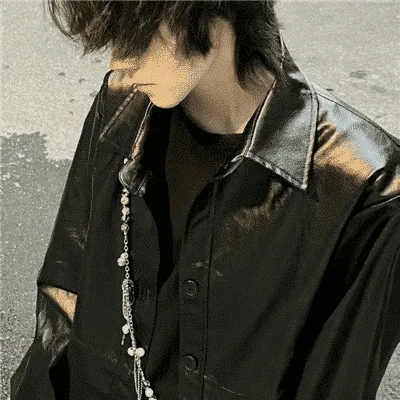
Edit a photo with a clear instruction

Upload a sharp photo and name both the change and what should stay: for example, replace the background while keeping the product shape and viewpoint. The model can also change unintended details, so compare faces, labels, edges and proportions with the original before using the edit.

Combine up to 10 reference images

Use JPG, PNG or WEBP references of up to 10 MB each. Explain each image's role, such as the subject, setting or colour direction, and avoid contradictory views. Ten is the upload limit, not a guarantee that every identity or detail will be preserved; fewer well-chosen images may make your request clearer.

Choose a composition for the destination

Use 1:1 for square placements, 4:3 or 3:2 for landscape layouts, 3:4 or 2:3 for portraits, and 16:9 or 9:16 for wide or vertical compositions. Auto uses a square for text-only generation and lets an image edit follow its references. Describe where the subject should sit if you need room for later typography.

Select 1K, 2K or 4K and a file format

Choose the output resolution before generating and select PNG or JPEG. One request returns one image. Higher resolution can help with larger placements but does not repair incorrect text, anatomy or product detail; verify the result at full size. The actual pixel dimensions depend on the selected resolution and aspect ratio.

Check lettering and fine detail

Keep any requested wording short and clearly separated from the rest of the description. After generation, read every label and check hands, reflections, repeated objects and small patterns. For a finished poster or product label, add precise typography in your design editor rather than assuming generated text is error-free.

Build product and campaign concepts

Try a tabletop product scene, a seasonal background or a consistent colour direction for a campaign concept. Keep the reference product visible and change one major element at a time. Compare the generated silhouette, packaging and logos with your source; a visually appealing concept is not proof of an exact catalogue match or permission to use a brand.

Review, download and use the result

Sign in, confirm your balance and the credit estimate, then submit your request. Once the image is ready, inspect it and use the result's download control. Open the saved file before handing it off for a website, presentation or further editing. Check rights to your inputs and applicable service and model terms before publishing.

Project ideas for your next brief

Product scene

Place a ceramic bottle on a light stone surface with soft side lighting and space for a heading. Compare the product outline and label with your reference before using the result.

Photo variation

Try a new background for an existing portrait while describing the features and viewpoint to retain. Review the face, hair and edges against the original.

Campaign composition

Explore a vertical composition using a reference colour palette. Leave room for a headline, then add the final lettering and layout in your design editor.

FAQ

FLUX.3 Klein questions

FLUX.3 Klein Image Generator FAQ

Compare image models

Looking for the previous image model? Explore FLUX.2, or compare another workflow with Nano Banana 2.1.

Generate an image from text or upload references for a new version of a photo. Product scenes, composition studies and background edits are useful starting points. This workspace uses the FLUX.3 Klein image model; it does not generate FLUX 3 video, sound or robot actions.

Select FLUX.3 Klein and upload a photo in the image input. Describe what to change and what to preserve, then choose the output settings and generate. A text-only request needs no reference image. Compare the edited result with the source, particularly faces, lettering and product shape.

You can add up to 10 reference images in JPG, PNG or WEBP, with a maximum of 10 MB per image. Use clear, relevant images and describe their roles. Adding more references does not guarantee faithful preservation of every detail.

The generator offers 1K, 2K and 4K, with PNG or JPEG output. Ratios are auto, 1:1, 4:3, 3:4, 16:9, 9:16, 3:2 and 2:3. Auto becomes 1:1 for text-only generation; editing passes the automatic ratio setting to the image model. Each request produces one image, not a batch.

Generation on Nano Banana Pro requires an account and credits. Check the displayed estimate before submitting; resolution and whether you provide reference images affect the cost. Any available credits are shown in your account. This page does not promise unlimited free use or a fixed generation time.

No. This page selects FLUX.3 Klein for image generation and editing. FLUX.2 has its own image-model page, and FLUX 3 video is a different workflow. Features described for the wider FLUX family, such as video or box-based editing, are not automatically available in this workspace.

Reference images and explicit instructions help communicate your intent, but details can change. Check identity, anatomy, logos, spelling and any important measurements. If exact brand artwork or typography is required, finish and verify those elements in an appropriate image editor.

When generation finishes, review the image and use the download control on the result. PNG or JPEG can be opened in common design tools. Commercial use depends on your rights to the inputs and the applicable model and service terms; there is no blanket permission for third-party faces, artwork or trademarks.

Maya Chen
Maya Chen“I start a product concept with one clear reference and compare the bottle outline before moving on. Keeping the brief focused makes it easier for me to judge the background and lighting.”
Daniel Reed
Daniel Reed“For portrait variations, I describe which features should stay and review the face against the source. I would still check the hair and edges before putting an image into a client draft.”
Sofia Martin
Sofia Martin“I use a vertical composition to plan space for a campaign headline. I prefer to add the final text in my editor so I can control spelling and layout.”
Alex Morgan
Alex Morgan“For a background change, I describe the new setting and the product details that should stay. I compare the outline and reflections with the reference before choosing a version.”
Emma Wilson
Emma Wilson“I use a small set of references to communicate a colour direction. Giving each image a clear role helps me avoid mixing up the subject, materials and background.”
Luca Rossi
Luca Rossi“When exploring portrait lighting, I change one main instruction at a time. I keep the original nearby to check facial proportions instead of judging only the overall atmosphere.”

User reviews

Read All Stories
Maya Chen
Maya Chen“I start a product concept with one clear reference and compare the bottle outline before moving on. Keeping the brief focused makes it easier for me to judge the background and lighting.”
Daniel Reed
Daniel Reed“For portrait variations, I describe which features should stay and review the face against the source. I would still check the hair and edges before putting an image into a client draft.”
Sofia Martin
Sofia Martin“I use a vertical composition to plan space for a campaign headline. I prefer to add the final text in my editor so I can control spelling and layout.”
Alex Morgan
Alex Morgan“For a background change, I describe the new setting and the product details that should stay. I compare the outline and reflections with the reference before choosing a version.”
Emma Wilson
Emma Wilson“I use a small set of references to communicate a colour direction. Giving each image a clear role helps me avoid mixing up the subject, materials and background.”
Luca Rossi
Luca Rossi“When exploring portrait lighting, I change one main instruction at a time. I keep the original nearby to check facial proportions instead of judging only the overall atmosphere.”
Noah Kim
Noah Kim“For packaging concepts, I treat the image as a composition draft. Exact labels and brand lettering go into my design file afterward, where I can check them carefully.”
Sara Ali
Sara Ali“Before exporting a visual, I consider where it will be used and choose the resolution and PNG or JPEG format. I inspect the saved file at full size before handing it off.”
Noah Kim
Noah Kim“For packaging concepts, I treat the image as a composition draft. Exact labels and brand lettering go into my design file afterward, where I can check them carefully.”
Sara Ali
Sara Ali“Before exporting a visual, I consider where it will be used and choose the resolution and PNG or JPEG format. I inspect the saved file at full size before handing it off.”

Explore More AI Image Models

FLUX.2

FLUX.2

New

FLUX.2 is an image generation model designed to follow detailed instructions, including requests for text in images, hand poses and the spatial relationships between objects. Results can vary with the prompt and settings.

Try now
Nano Banana 2.1

Nano Banana 2.1

New

Google's efficient Gemini image model with sharper text rendering and steadier characters and styles across multi-turn edits. Choose 1K, 2K or 4K and use up to 10 reference images.

Try now
Z-Image

Z-Image

A text-to-image model designed to turn detailed prompts into visual elements, including conceptual and abstract ideas.

Try now
GPT Image 2

GPT Image 2

New

A multi-reference image generation model that accepts up to 16 reference images for projects requiring consistency, detailed direction and complex commercial workflows. Supports both text-to-image and image-to-image generation.

Try now
Seedream 5.0 Lite

Seedream 5.0 Lite

New

Seedream 5.0 Lite is a lightweight image generation model from ByteDance. It supports batches of up to 15 images and is suited to frequent creative work. Available speed and image quality depend on your model and settings.

Try now
Seedream 4.5

Seedream 4.5

New

Seedream 4.5 is an image generation model for prompts that describe a scene, mood or lighting. It can be used for realistic photography or surreal artwork; results depend on the prompt and settings.

Try now

Create your next image with FLUX.3 Klein

Start with a short brief or a clear reference photo. Select FLUX.3 Klein, review the settings and credit cost, then generate and check your image.
Create with FLUX.3 Klein
Nano Banana Pro
Nano Banana ProNano Banana Pro

Nano Banana Pro gives you access to advanced AI image models for creating professional-quality images.

Email
FAQShowcasesChangelogAPIManga ColorizerCyberpunk
العربيةDeutschEnglishEspañolFrançais繁體中文日本語한국어Bahasa MelayuTürkçeไทยTiếng ViệtPortuguês (Brasil)中文עבריתPolski
© 2026 Nano Banana Pro· All rights reserved
Privacy PolicyTerms of ServiceRefund PolicyRefund RequestAbout Us
HomeAI ToolsAssetsProfile