Nano Banana Pro
  • Home
  • Reviews
  • Assets
  • Pricing
Models
Nano Banana 2.1Nano Banana 2Nano Banana 2 LiteNano Banana ProSeedream 5.0 LiteSeedream 5.0 ProSeedream 5.0 FlashGPT Image 2.5 FlareGPT Image 2.5 SunburstGPT Image 2Grok Imagine Image 2.0FLUX.3 KleinVeo 3.1 QualityGemini OmniGemini Omni 1.1 FlashMiniMax H3MiniMax H3 MaxMiniMax H3 Max TurboSeedance 2Seedance 2.5Seedance 2 FastSeedance 2 MiniHappyHorseWan 2.6Wan 3.0 VideoWan 3.0 Video PrimeKling 2.6Kling 3.0Kling 3.0 OmniKling 3.0 Motion ControlPixVerse V6Grok Imagine Video 1.5 PreviewVidu Q4Grok Imagine Video 1.5 Lite
Nano Banana ProNano Banana Pro
Generation mode
Model
0 / 20000
Resolution
Duration

Vidu Q4 Video Generator

Animate a single image or bring several visual references together in one video. Choose a resolution from 540p to 4K, describe the action and camera movement, and enable audio if your scene needs sound.

Vidu Q4 Video Generator
About

What is Vidu Q4?

Vidu Q4 is a video model developed by ShengShu Technology. Image-to-video turns one image into a 3–16-second clip, while reference-to-video combines 1–15 images into a 3–16-second clip. Optional audio and up to three voice references let you explore scenes where appearance, movement and sound work together.

What is Vidu Q4?

Vidu Q4 features

Choose the input workflow that fits your scene.

Choose a workflow for your shot

Start with one image or combine several references.

Use image-to-video to add camera movement and action to a product image, portrait or landscape. Choose reference-to-video when a scene needs several visual sources for its subjects, style or setting. Describe one clear action and the camera movement you want to keep the scene focused.
Prepare clear visual and voice references

Use references that contribute distinct information.

Image-to-video accepts one image and inherits its aspect ratio. Reference-to-video accepts 1–15 images; choose useful views and avoid contradictory appearances. You may add up to three MP3 voice references, each 3–12 seconds and no larger than 50 MB. Use recordings you have permission to upload.

Set duration, composition and sound

Match the settings to the destination of your video.

Upload your source images, describe the action, and choose a resolution from 540p, 720p, 1080p, 2K or 4K. Single-image clips run 3–16 seconds; reference clips run 3–16 seconds with 16:9, 9:16, 1:1, 4:3 or 3:4 framing. Audio is optional and switched off by default. Review the current credit estimate before submitting.

Create clips for editing and sharing

Explore motion, atmosphere and optional synchronized sound.

Use the resulting clip in a social video, product presentation or visual storyboard. A higher resolution may suit a larger screen, while a shorter clip can help you explore one focused action. If you enable audio, review the picture and sound together to decide how the clip fits your project.

Review the whole result before choosing

Check continuity, motion and any generated audio.

Watch the clip from start to finish. Compare the subject with your references, check for changes to faces, hands or products, and review camera movement and scene transitions. If sound is enabled, listen for the voice, timing and unwanted audio. Matching a reference identity or synchronising lip movements is not guaranteed; adjust your inputs or description if needed.

Download and finish your video

Treat the clip as material for your final edit.

Download any result you want to keep, then trim it, arrange it with other shots, and add captions or audio in your editor. Check the crop and readability on the intended screen. Vidu Q4 does not grant commercial rights to your references, voices or generated content. Confirm you have the necessary permissions and check the applicable terms before publishing.

Official demonstrations and original scene concepts

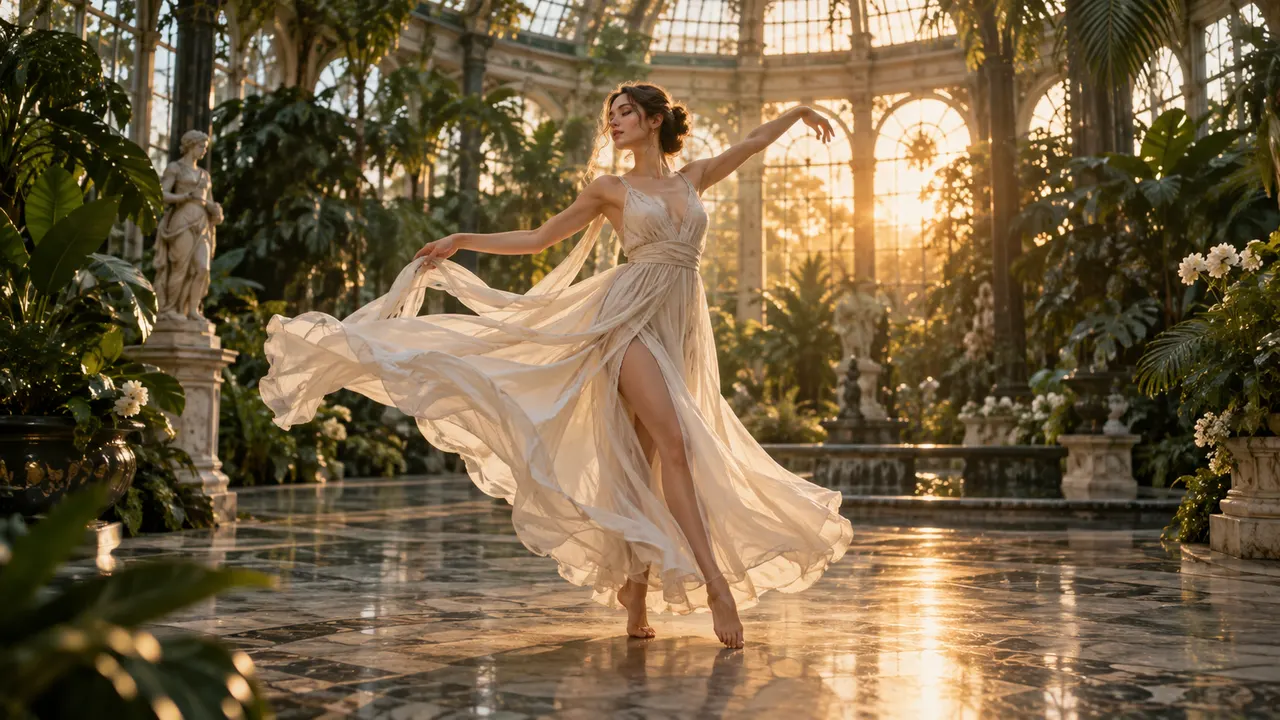
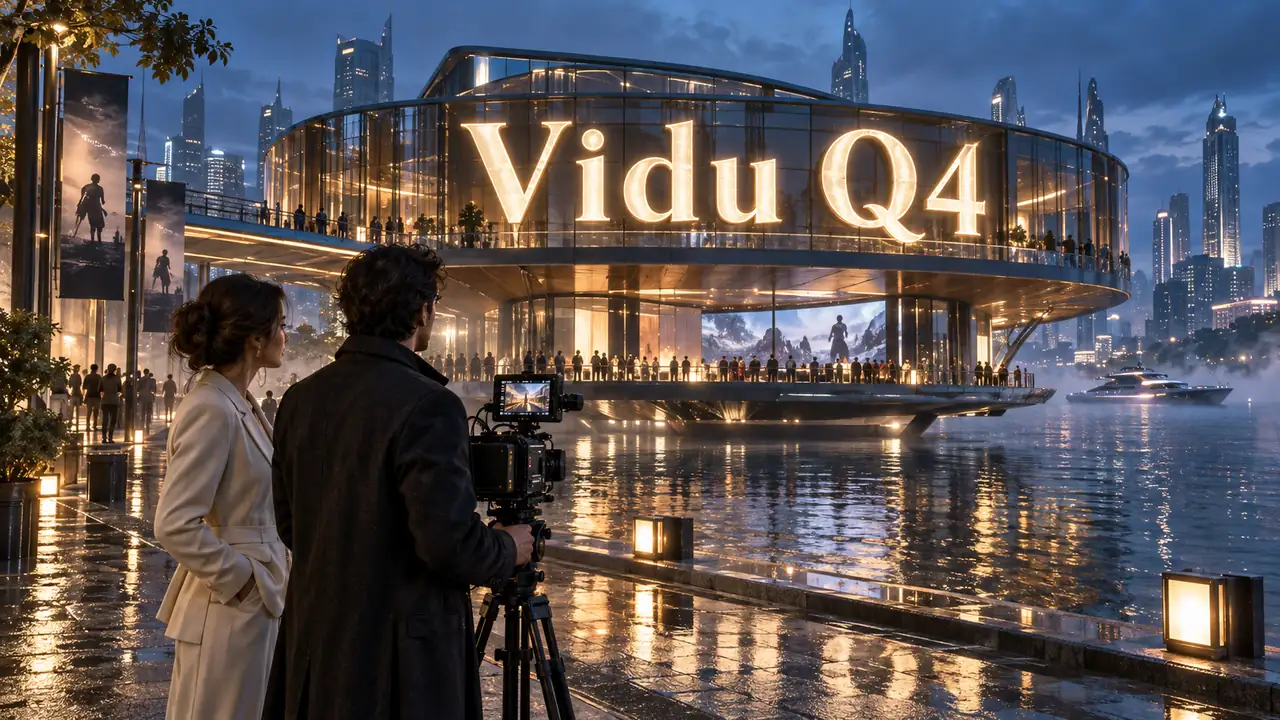
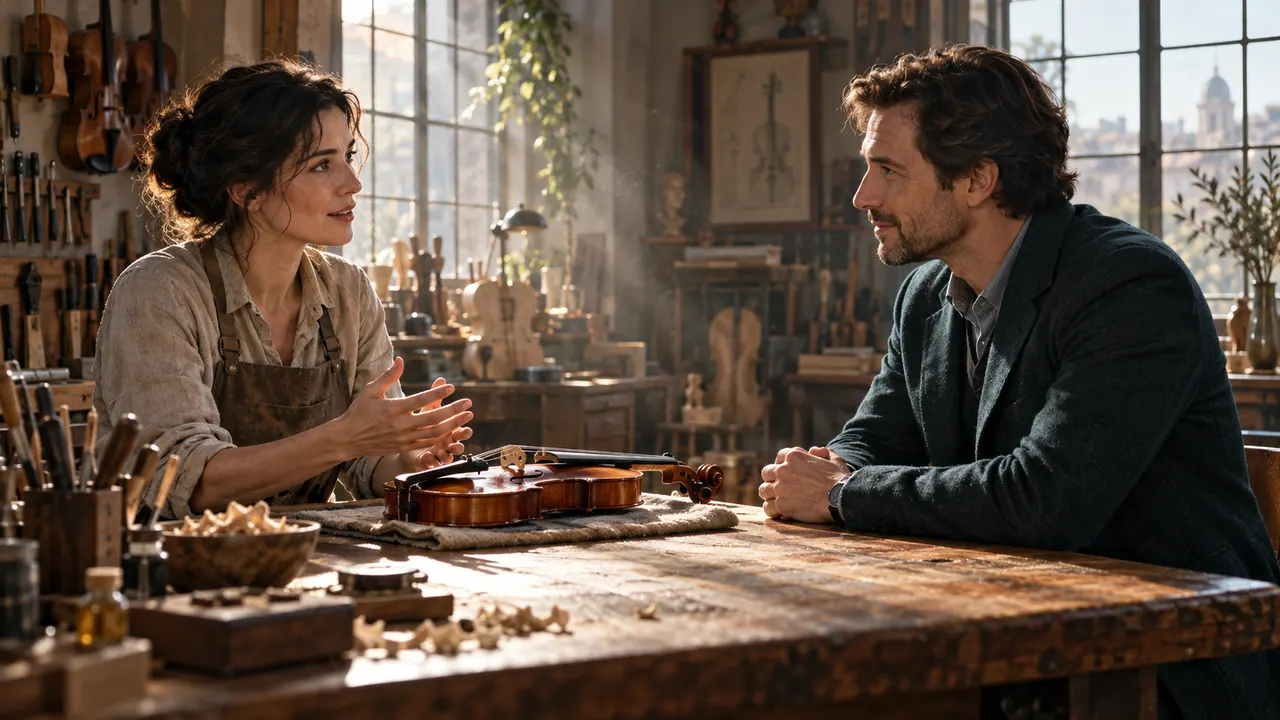
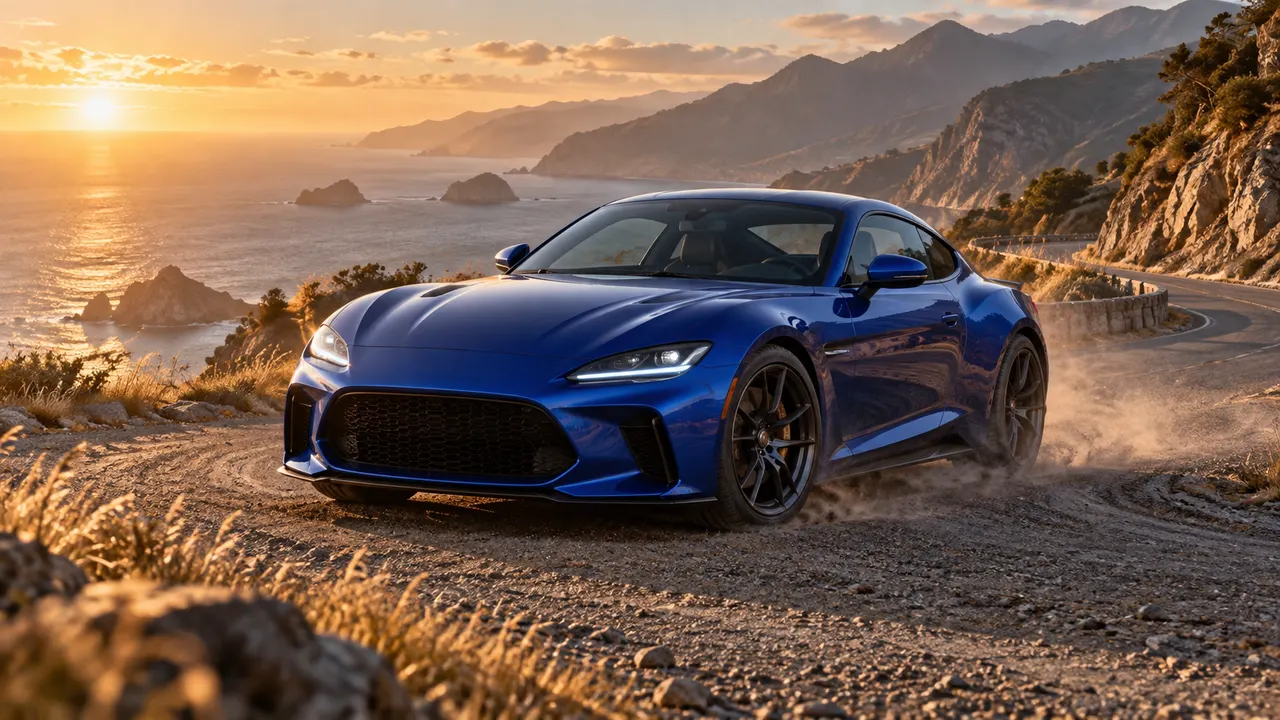
The two videos are official Vidu demonstrations. The three still images are original AI concept illustrations to help you prepare a scene; they are not Vidu Q4 outputs.

Reference-to-video demonstration

Image-to-video demonstration

A scene concept for exploring multiple visual references

Reference-led scene

A blue sports coupe on a coastal road, illustrating a possible starting frame

Motion-led scene

A cinematic scene concept for exploring camera movement and atmosphere

Cinematic scene

FAQ

Vidu Q4 FAQ

Vidu Q4 Video Generator FAQ

Vidu Q4 supports single-image animation and reference-to-video. Supply an image or 1–15 reference images, then describe the action and camera movement. These are the two available workflows on this page.

Single-image video supports 3–16 seconds. Reference-to-video supports 3–16 seconds. Choose a duration that leaves enough time for the action you describe.

Reference-to-video accepts 1–15 images and optionally 0–3 MP3 voice clips. Each voice clip must be 3–12 seconds and at most 50 MB. Single-image animation uses one image.

Single-image video inherits the uploaded image's aspect ratio. Reference-to-video offers 16:9, 9:16, 1:1, 4:3 and 3:4. Choose the frame that suits your intended use.

Both workflows offer 540p, 720p, 1080p, 2K and 4K. Select resolution alongside duration and review the estimate before generating.

For a 5-second clip, the current costs are 44 credits at 540p, 92 at 720p, 116 at 1080p, 183 at 2K and 375 at 4K. Both workflows cost the same. Check the generator's estimate for the settings you select.

Choose reference-to-video and upload up to three clear MP3 voice clips, each 3–12 seconds and no larger than 50 MB. Describe which character each voice belongs to and the dialogue in your prompt. Enable audio generation when you want a video with sound, then review the voices and timing in the result.

Explore more AI video models

Veo 3.1 Quality

New

Veo 3.1 offers Lite, Fast and Quality variants where available. Choose text-to-video, image-to-video or video-to-video in supported modes; reference-to-video supports up to 3 images and requires Fast at 16:9. Available aspect options are Auto, 16:9 and 9:16. The interface has no duration or resolution selector. Check the displayed credit cost before generating.

Try now

Wan 2.6

New

Wan 2.6 supports text-to-video, image-to-video and video-to-video. It offers 5-, 10- and 15-second duration options, 720p and 1080p resolutions, and multi-shot generation.

Try now

Sora 2

The standard Sora model. It is designed for efficient video generation and can be used for storyboards, social clips and creative iterations.

Try now

Kling 2.6

Kling 2.6 is designed for complex motion and interactions. Use it to explore dynamic character movement, objects interacting and fluid camera moves.

Try now

MiniMax H3

New

MiniMax H3 is a multimodal video model for text-to-video, image-to-video and reference-to-video. It offers 768p and 2K output, flexible duration options and reference audio.

Try now

Seedance 2

New

Seedance 2 is ByteDance's video model for visual quality, complex motion and multimodal references. It supports text, image, video and audio inputs for projects that need consistent visuals and considered camera movement.

Try now

Bring your scene to life with Vidu Q4

Prepare your images, choose your settings and check the credit estimate before generating.
Create with Vidu Q4
Nano Banana Pro
Nano Banana ProNano Banana Pro

Nano Banana Pro gives you access to advanced AI image models for creating professional-quality images.

Email
FAQShowcasesChangelogAPIManga ColorizerCyberpunk
العربيةDeutschEnglishEspañolFrançais繁體中文日本語한국어Bahasa MelayuTürkçeไทยTiếng ViệtPortuguês (Brasil)中文עבריתPolski
© 2026 Nano Banana Pro· All rights reserved
Privacy PolicyTerms of ServiceRefund PolicyRefund RequestAbout Us
HomeAI ToolsAssetsProfile

Image

JPG, JPEG, PNG, WEBP · 50MB

Drop an image or click to upload.