Nano Banana Pro
  • Home
  • Reviews
  • Assets
  • Pricing
Models
Nano Banana 2.1Nano Banana 2Nano Banana 2 LiteNano Banana ProSeedream 5.0 LiteSeedream 5.0 ProSeedream 5.0 FlashGPT Image 2.5 FlareGPT Image 2.5 SunburstGPT Image 2Grok Imagine Image 2.0FLUX.3 KleinVeo 3.1 QualityGemini OmniGemini Omni 1.1 FlashMiniMax H3MiniMax H3 MaxMiniMax H3 Max TurboSeedance 2Seedance 2.5Seedance 2 FastSeedance 2 MiniHappyHorseWan 2.6Wan 3.0 VideoWan 3.0 Video PrimeKling 2.6Kling 3.0Kling 3.0 OmniKling 3.0 Motion ControlPixVerse V6Grok Imagine Video 1.5 PreviewVidu Q4Kling 4.0Grok Imagine Video 1.5 LitePixVerse V6 Max
Nano Banana ProNano Banana Pro
Model
0 / 5000
Aspect ratio
Resolution
Duration

PixVerse V6 Max Video Generator

Turn text or one image into 1–15-second videos up to 1080p, with optional generated audio.

PixVerse V6 Max Video Generator
About

PixVerse V6 Max Video Generator

Turn text or one image into 1–15-second videos up to 1080p, with optional generated audio.

PixVerse V6 Max Video Generator

Plan a shot with PixVerse V6 Max

Choose a workflow and prepare your next edit.

Describe a clear scene

Start with a subject, setting, action and camera movement. For a product study, describe a slow orbit around the object; for a storyboard, describe the character’s next action. Text-to-video starts from your description alone. Keep the movement focused enough to inspect in a short clip, and add exact titles or logos later in an editor.

Prepare one reference image

Image-to-video uses one JPG, PNG or WebP image, up to 20 MB, with each side at most 10000 pixels. Upload it to the site or select a compatible library image. Use a sharp subject and crop to the intended composition before uploading: the image determines the output shape. Describe what should move and what should stay stable; another ending frame is not accepted.

Choose duration, shape and resolution

Choose an integer duration from 1–15 seconds and 360p, 540p, 720p or 1080p. Text-to-video offers 16:9, 4:3, 1:1, 3:4, 9:16, 2:3, 3:2 and 21:9. A short duration suits a single gesture; allow more time for a developing action. Image-to-video follows the source image instead of a separate ratio setting. There is no 4K option for this model here.

Generate with optional sound

Sign in, choose text-to-video or image-to-video, and describe the action. Both modes need a description of 1–5000 characters. Check the estimate, submit once and follow the task status. Optional audio generates sound with the video; an optional seed provides a starting value for comparisons. Video extension, first/last-frame transitions, multi-clip controls and uploaded audio are not supported by this model here.

Check the credit estimate

A five-second 720p clip costs 53 credits without audio or 72 with audio. At 1080p, the same duration costs 106 or 135 credits respectively. Duration, resolution and sound change the total. Check the displayed estimate before submitting, especially after changing a setting. Start with a short draft to assess your idea before choosing a longer or higher-resolution version.

Review, download and edit

Watch the whole clip and, when enabled, listen to its sound. Check faces, hands, product outlines, background motion, text and synchronization across the timeline. Use the result’s download control and open the saved file before editing. Trim, caption or combine clips in your editor for social posts or storyboards. Accuracy and generation time vary; use material you are allowed to process and review applicable terms before publication.

PixVerse V6 Max demonstration

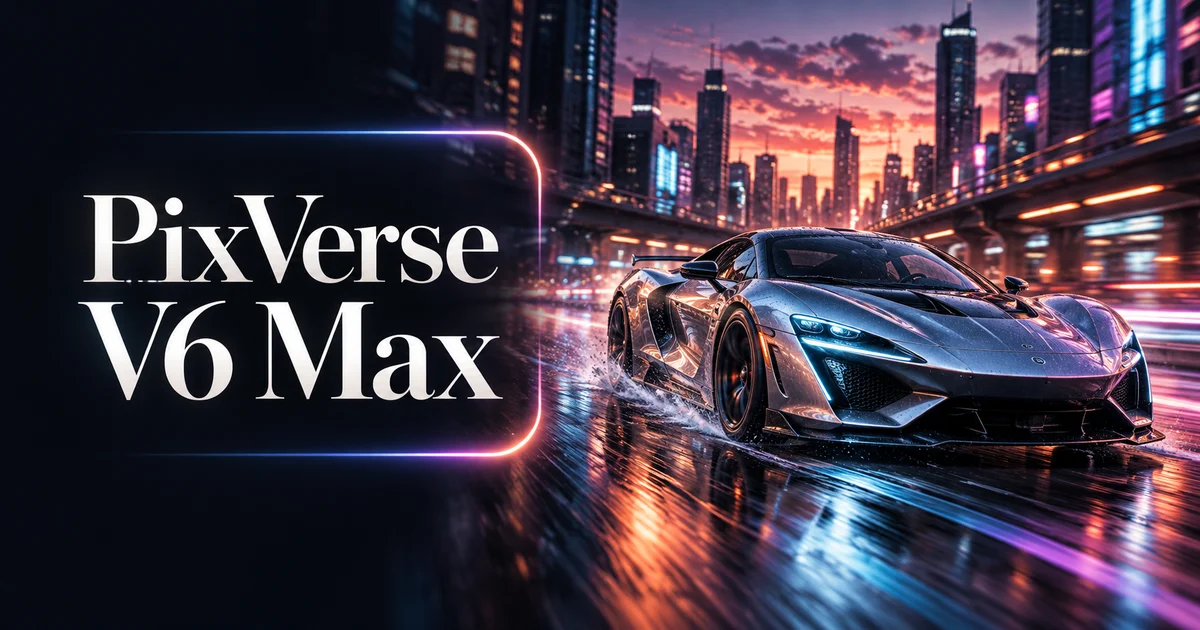
Supplied demonstration video; the cover is an original AI illustration. Neither is a generation test performed on this site.

PixVerse V6 Max demonstration

FAQ

PixVerse V6 Max questions

PixVerse V6 Max Video Generator FAQ

Explore video models

PixVerse V6 · Vidu Q4

It generates short video drafts from a written scene or one reference image. Both workflows require a description of the desired action. Review each result for your intended use.

Upload one JPG, PNG or WebP up to 20 MB, with neither side above 10000 pixels. Crop first: image-to-video follows the image’s shape.

Choose 1–15 seconds in whole seconds and 360p, 540p, 720p or 1080p. The default is five seconds at 720p.

Text-to-video includes 9:16 and 21:9 among eight ratios. For image-to-video, prepare the source image in the desired shape; a separate ratio control does not apply.

Yes, turn on audio to generate sound alongside the video. Audio changes the credit estimate. This model does not accept an uploaded soundtrack here or guarantee exact dialogue or synchronization.

720p costs 53 credits without audio or 72 with audio. 1080p costs 106 or 135 respectively. Check the estimate for other durations and settings.

This integration provides text-to-video and single-image-to-video. It does not provide ending frames, extension of an existing video, video references or multi-clip controls.

The supplied video illustrates the model; it is not a recorded generation test on this site. The cover is an original AI promotional illustration. Inspect and download your own result before using it.

Explore more AI video models

Veo 3.1 Quality

Veo 3.1 Quality

New

Veo 3.1 offers Lite, Fast and Quality variants where available. Choose text-to-video, image-to-video or video-to-video in supported modes; reference-to-video supports up to 3 images and requires Fast at 16:9. Available aspect options are Auto, 16:9 and 9:16. The interface has no duration or resolution selector. Check the displayed credit cost before generating.

Try now
Wan 2.6

Wan 2.6

New

Wan 2.6 supports text-to-video, image-to-video and video-to-video. It offers 5-, 10- and 15-second duration options, 720p and 1080p resolutions, and multi-shot generation.

Try now
Sora 2

Sora 2

The standard Sora model. It is designed for efficient video generation and can be used for storyboards, social clips and creative iterations.

Try now
Vidu Q4

Vidu Q4

New

Animate one first-frame image or use up to 15 reference images. Choose 540p–4K and a duration of 3–16 seconds for image animation or 1–16 seconds for references. Synchronized audio is optional. Reference audio must be MP3 and 3–12 seconds long.

Try now
Kling 4.0

Kling 4.0

New

Create 3–30-second videos from text, first and last frames, or visual references. Choose 720p or 1080p and review motion, sound and credits before developing your next edit.

Try now
Kling 2.6

Kling 2.6

Kling 2.6 is designed for complex motion and interactions. Use it to explore dynamic character movement, objects interacting and fluid camera moves.

Try now

Create with PixVerse V6 Max

Turn text or one image into 1–15-second videos up to 1080p, with optional generated audio.
Create with PixVerse V6 Max
Nano Banana Pro
Nano Banana ProNano Banana Pro

Nano Banana Pro gives you access to advanced AI image models for creating professional-quality images.

Email
FAQShowcasesChangelogAPIManga ColorizerCyberpunk
العربيةDeutschEnglishEspañolFrançais繁體中文日本語한국어Bahasa MelayuTürkçeไทยTiếng ViệtPortuguês (Brasil)中文עבריתPolski
© 2026 Nano Banana Pro· All rights reserved
Privacy PolicyTerms of ServiceRefund PolicyRefund RequestAbout Us
HomeAI ToolsAssetsProfile

Image

JPG, JPEG, PNG, WEBP · 20MB

Drop an image or click to upload.